In this post I cover the basics of replacing the Log Browser and Web Client SSL certificates for vCenter 5.1 Update 1. However, as I’ve mentioned before, VMware has released the vCenter certificate automation tool. That tool automates the replacement of the Log Browser and web client certificates, among others. I now recommend you use that tool instead of manually replacing the certificates. However, you can still follow the instructions below if for some reason the VMware tool doesn’t work for you. You can find the full VMware KB article here.
Since this is the next to last article in the 15-part vCenter 5.1 Update 1 installation series, it’s now time to follow my 4 part certificate replacement series here. The last article in this 15-part series shows you how to replace ESXi host certificates, which the VMware certificate tool will NOT do. You can either jump directly to the SSL replacement tool series and replace all of your vCenter SSL certificates now, or you can go ahead to Part 15 and mint SSL certificates for your ESXi hosts then come back and update the vCenter certificates.
Before we get started, listed below are the other related articles in this series:
Part 1 (SSO Service)
Part 2 (Create vCenter SSL Certificates)
Part 3 (Install vCenter SSO SSL Certificate)
Part 4 (Inventory Service Install)
Part 5 (Inventory Service SSL Certificate)
Part 6 (Create vCenter and VUM Databases)
Part 7 (Install vCenter Server)
Part 8 (Install Web Client)
Part 9 (Optional SSO Configuration)
Part 10 (Create VUM DSN)
Part 11 (Install VUM)
Part 12 (VUM SSL Configuration)
Part 13 (VUM Configuration)
Part 14 (Web Client and Log Browser SSL)
Part 15 (ESXi Host SSL Certificate)
—
UPDATE 5/4/2013: Updated content to reflect the recommendation of using the VMware vCenter Certificate automation tool instead of manually replacing the certificates. Updated references to reflect that Update 1 is now out.
UPDATE 11/20/2012: VMware has updated the KB article here with additional information if you are subordinate CAs. Since my lab consists of only a single CA, I don’t cover the subordinate CA steps below. Refer to the KB article for more details.
—
Log Browser and Web Client SSL Certificate Replacement
1. Stop the VMware vSphere Web Client service and the VMware Log Browser service.
2. From your D:\Certs\WebClient directory copy rui.crt, rui.key and rui.pfx to the directory below.
C:\ProgramData\VMware\vSphere web client\ssl
3. From your D:\Certs\LogBrowser directory copy rui.crt, rui.key and rui.pfx to the directory below.
C:\Program Files\VMware\Infrastructure\vSphereWebClient\logbrowser\conf
4. To un-register the Web Client with the SSO service, open an elevated command prompt and type:
set JAVA_HOME=c:\Program Files\VMware\Infrastructure\JRE
cd /d C:\Program Files\VMware\Infrastructure\vSphereWebClient\SsoRegTool
regTool.cmd unregisterService -si “C:\Program Files\VMware\Infrastructure\vSphereWebClient\serviceId” -d https://SSOServer.domain:7444/lookupservice/sdk -u admin@System-Domain -p YourPassword

5. To Register the service type the command below. Note: The directory paths appear to be case sensitive, so make sure they match exactly what your system has. In particular, the “ssl” directory may need to be in all lower case.
regTool.cmd registerService –cert “C:\ProgramData\VMware\vSphere Web Client\ssl” –ls-url https://SSOServer.domain:7444/lookupservice/sdk –username admin@System-Domain –password YourPassword –dir “C:\Program Files\VMware\Infrastructure\vSphereWebClient\SsoRegTool\sso_conf” –ip “*.*” –serviceId-file “C:\Program Files\VMware\Infrastructure\vSphereWebClient\serviceId”
If successful you should see something like the following:

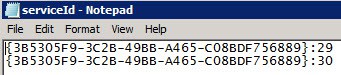
6. Navigate to C:\Program Files\VMware\Infrastructure\vSphereWebClient and open the ServiceID file in Notepad. Remove all entries except for the two IDs which were listed from the previous registration step (In my case they were :29 and :30, which I highlighted in yellow).






If anyone has missed the step to save the password from step 1 I have sent Derek a quick SQL script to pull the CA cert out of the SSO database and I am sure he will update with the needed steps.
Interesting. On the VCSA, it appears that the command to update the certificates also updates root-ca cert in the SSO root-trust.jks keystore.
I was able to pull a root-ca cert out of the root-ca.jks file, but it didn’t fix the log browser problem.
Also, on the VCSA, the keytool command requires the ‘-rfc’ parameter to output a plain-text PEM certificate. Otherwise it comes out in binary DER format.
I’m working on a newly deployed VCSA, to see if the cert extracted from the root-trust.jks keystore is different…
Ok, this fix works for the VCSA as well. However, I couldn’t find the appropriate self-signed cert anywhere on the system after a successful certificate change. It is very easy to save a copy of the right cert before replacing them with CA-signed certs, though.
—
cp /etc/ssl/certs/Embedded-SSO-Server-Root-CA.pem /etc/ssl/certs/SSO-STS-Root.pem
—
Then after replacing the certs, run these commands to update the logbrowser.properties file and restart the service.
—
sed -i.bak ‘s/.*sso-certs=.*/sso-certs=\/etc\/ssl\/certs\/SSO-STS-Root.pem/’ /usr/lib/vmware-logbrowser/conf/logbrowser.properties
service vmware-logbrowser restart
—
I’ll be updating the script I published on the VMware community discussion to handle this. http://communities.vmware.com/message/2124455#2124455
Hi,
Thanks for all this work!
Unfortunately, I am not able to get the LogBrowser working…even after having loaded the new chain in the STS certificate, I still have the error…
Is the Logbrowser really working for you?
Hi Derek, Perfect job, I have done every step en the new vCenter is running like a charm.
I only have trouble with the logbrowser (the unregister part at step 4) for some strange reason it keeps saying:
The system cannot find the path specified.
3
I tried everything, even editing the command file, with no result. Filename is correct, capital letters are correct, but nothing works.
Have you got any idea?
I see Auto Deploy uses certs as well. Can I use the same steps to get those self signed?
Regards
This comment has been removed by the author.
I was able to install the web client by renaming the SSL to ssl in C:\ProgramData\VMware then i turned off all vmware services except the sso service, run install again. At one point it asked to overight the certificate and i accepted.
Hello,
i had also trouble with intermediate ca and i have find a solution for my problem.
problem:
If you try to open the Log-Browser in vSphere Web Client you get the following error:
faultCode:Server.Processing faultString:’javax.servlet.ServletException : java.lang.Exception: https://BLPKVSPHERE01.BLPK2000.blpk.ch:12443/vmwb/logbrowser: Unauthorized access
‘ faultDetail:’null’
have a look at the logs from Log-Browser under the following directory:
C:\Program Files\VMware\Infrastructure\vSphereWebClient\logbrowser\log
in my case the following error occurred:
2013-02-06 16:40:22,468 INFO [com.vmware.vide.ws.sso.SsoRequestHandler] [WrapperStartStopAppMain] Using certificate file C:\ProgramData/VMware/SSL/ca_certificates.crt
2013-02-06 16:40:22,478 ERROR [com.vmware.vide.ws.sso.SsoRequestHandler] [WrapperStartStopAppMain] Unable to load certificates
java.security.cert.CertificateException: java.io.IOException: DerInputStream.getLength(): lengthTag=127, too big.
solution:
– be sure the steps 1 to 8 of Part 14 are well done
– stop VMware Log Browser service
– rename the certificate of your intermediate ca to ca_certificates_2.crt
– copy ca_certificates_2.crt to C:\ProgramData\VMware\SSL
– copy logbrowser.properties from C:\Program Files\VMware\Infrastructure\vSphereWebClient\logbrowser\conf\ to desktop or an other place and edit it
ORIGINAL File:
admin-port=12221
secure-storage=../conf/storage
https-port=12443
https-maxidle=3000
https-keystore=../conf/rui.pfx
https-keystore-password=testpassword
https-keystore-type=pkcs12
sso-certs=%PROGRAMDATA%/VMware/SSL/ca_certificates.crt
NEW File:
admin-port=12221
secure-storage=../conf/storage
https-port=12443
https-maxidle=3000
https-keystore=../conf/rui.pfx
https-keystore-password=testpassword
https-keystore-type=pkcs12
sso-certs=%PROGRAMDATA%/VMware/SSL/ca_certificates_2.crt
– copy the new logbrowser.properties to C:\Program Files\VMware\Infrastructure\vSphereWebClient\logbrowser\conf\ and replace the original file
– start VMware Log Browser service
– wait a couple of minutes
-> and now, it works…
PS. Derek, really great job! Thanks!
Greets Alex
Hi Derek
Many thanks for the work, it does simplify a lot of work compared to VMware documentation. However, I have run into a problem with Log Viewer as others commented earlier; the error is in the form of:
faultCode:Server.Processing faultString:’javax.servlet.ServletException : java.lang.Exception: https://VCENTER-SERVER.DOMAIN.LOCAL:12443/vmwb/logbrowser: Unauthorized access ‘ faultDetail:’null’
I followed the steps as below:
1. Install the SSO Component as per your article and other best practices (including preparations of a SSL Certificate Template on a “Single” Windows 2008 R2 “Enterprise” Root CA and a seperate SQL 2008 R2 database server)
2. Followed by your article:
VMware vCenter 5.1 Installation: Part 2 (Create vCenter SSL Certificates)
Used the Automated Certificate Batch File to create the private RSA keys, create CSRs based on the OpenSSL configuration file, get a minted certificate from a MS CA, then create the PFX file with the VMware password.
3. Followed by your article:
VMware vCenter 5.1 Installation: Part 2 (Create vCenter SSL Certificates) – “Create JKS KeyStore for SSO service”
4. Followed by your article:
VMware vCenter 5.1 Installation: Part 2 (Create vCenter SSL Certificates) –
“Pre-Staging SSL Certificates”
5. Followed by:
Replace SSL certificate for the SSO on http://communities.vmware.com/docs/DOC-20575 (using ReplaceSSOCerts_v2.cmd batch file)
6. Followed by your article:
VMware vCenter 5.1 Installation: Part 3 (Install SSO Service SSL Certificate) –
“Update Trusted Certificate Store”
with OpenSSL: Win32OpenSSL_Light-1_0_1e
7. Followed by:
Install vCenter Inventory Service
VMware vCenter 5.1 Installation: Part 4 (Install Inventory Service)
8. Followed by:
Install vCenter Server
VMware vCenter 5.1 Installation: Part 7 (Install vCenter Server)
making sure that the HKLM\System\CurrentControlSet\Services\ADAM_VMwareVCMSDS\Parameters\Port SSL
key is of type REG_DWORD (32-bit) with the value 636 (decimal, deleting the original key “Port SSL” as REG_SZ ).
8. Followed by:
Install vCenter Web Client
VMware vCenter 5.1 Installation: Part 8 (Install Web Client)
9. Followed by your article:
VMware vCenter 5.1 Installation: Part 8 (Install Web Client) –
“Update SSO Keystore”
There was a problem with password when selected root-trust.jks file from C:\Program Files\VMware\Infrastructure\SSOServer\Security; it kept popping up the password prompt every time typed “testpassword”; had to pick the root-trust.jks from c:\certs\SSO; may be this is where it went all wrong(?)
10. Followed by your article:
VMware vCenter 5.1 Installation: Part 9 (Optional SSO Configuration)
11. Followed by:
VMware vCenter 5.1 Installation: Part 10 (Create VUM DSN)
12. Followed by your article:
VMware vCenter 5.1 Installation: Part 11 (Install VUM)
Note: use 127.0.0.1 for the IP Address/Name field; otherwise VUM installation hangs (this is under step 4 on VMware vCenter 5.1 Installation: Part 11 (Install VUM))
13. Followed by your article:
VMware vCenter 5.1 Installation: Part 13 (VUM Configuration)
14. Followed by your article:
VMware vCenter 5.1 Installation: Part 14 (Web Client and Log Browser SSL)
Here is the problem when try to open the Log Browser within the Web Client interface.
faultCode:Server.Processing faultString:’javax.servlet.ServletException : java.lang.Exception: https://VCENTER-SERVER.DOMAIN.LOCAL:12443/vmwb/logbrowser: Unauthorized access ‘ faultDetail:’null’
I have tried the following but problem is still there:
http://jackstromberg.com/2013/01/vcenter-5-1-vsphere-web-client-log-browser-unauthorized-access-faultdetailnull-error/
If anyone has found an answer to the problem please let me know; I was doing very well until this Log Browser problem; I have started vCenter full installation from scratch few times (as per the steps I mentioned), but can’t get rid of the problem.
Thank you.
Hi Derek,
I have managed to resolve the issue; I came across this blog http://jackstromberg.com/tag/vcenter/ and followed the steps as below and that has resolved the problem:
1. Stop the VMware Log Browser service
2. Navigate to C:\Program Files\VMware\Infrastructure\vSphereWebClient\logbrowser\conf via Windows Explorer
3. Backup existing rui.crt, rui.key, rui.pfx.
4. Replace the rui.crt, rui.key, rui.pfx files with the ones from C:\certs\LogBrowser
5. Next, create a new java keystore with the chain trust for the certificate
1. Open up an elevated command prompt
2. Change directories to the VMware JRE
cd /d C:\Program Files\VMware\Infrastructure\jre\bin
3. Generate the new keystore (Do not change the testpassword or changeit password) (Change the Paths to point to your SSO pfx certificate e.g. C:\certs\SSO\rui.pfx and the destination path to output the java Keystore e.g. C:\certs\SSO\JKS\rui.jks)
keytool -v -importkeystore -srckeystore C:\certs\SSO\rui.pfx -srcstoretype pkcs12 -srcstorepass testpassword -srcalias rui -destkeystore C:\certs\SSO\JKS\rui.jks -deststoretype JKS -deststorepass changeit -destkeypass changeit
4. Copy the rui.jks from C:\certs\SSO\JKS\rui.jks to:
C:\Program Files\VMware\Infrastructure\SSOServer\Security\
5. Login to your vSphere Web Client with the admin@System-domain account
6. Navigate to Administration > Sign-On and Discovery > Configuration
7. Click on the STS Certificate tab and the click Edit
8. Select the rui.jks file from C:\Program Files\VMware\Infrastructure\SSOServer\Security\
9. When prompted for a keystore password enter changeit
10. Click on the rui line to highlight it, then click OK
11. Enter changeit again for the password
12. Acknowledge the dialog box that says you need to restart the server in order for the changes to take effect.
13. Reboot your server
6. Log back into your vSphere Web Client
7. Click on the Log Browser link and verify the error has been resolved
I am not sure what I did wrong to get the error in the first place.(?)
AS
Wow! It worked, actually better than doing it manually.
I had a brief moment of panic when I logged into my vCenter server using the vSphere client and the cert showed as "Default vCenter Certificate". Logging into the web client I saw the RSA chain and remembered from the original guide that I needed a restart.
Restarted the vCenter server and everything is working correctly.
You nailed it again Derek! I was thoroughly impressed with the original guide (and remember spending hours manually replacing certificates) and am impressed again with this update.
Thanks man.