I recently wrote a blog post on how to track who’s in each room of your house using Home Assistant and the Bermuda BLE Trilateration add-on. As part of that project I released a Bluetooth IRK (identity resolving key) capture tool and posted it on Github. Grabbing your phone or watch Bluetooth IRK is needed to accurately track your room-level presence.
This post goes into a bit more depth than the usage instructions on my Github IRK Capture page. If you are interested in the complete blog post for how to do room-level presence detection in Home Assistant check out my post Home Assistant: Track Who’s in Each Room with ESPHome + Bermuda BLE.
Please take note that while your ESP32 device is running the IRK Capture package it can NOT act as a Bluetooth proxy. You would need to re-flash your ESP32 to a ‘base’ ESPHome image that has the Bluetooth proxy feature enabled. Personally, I have a dedicated ESP32 sitting on the shelf that I pull out as needed to capture IRKs.
My IRK Capture package has been successfully tested with Apple iPhones, iPads and watches with the ’26 and ’27 OS family. I also used a Samsung Galaxy S25+ and Galaxy Watch8 Classic. It also uses the ESP-IDF framework, which should enable this package to run on any ESP32 that has Bluetooth and is supported by ESPHome. I’ve personally used a S3, C3, C5, C6 and basic ESP32.
Update September 27, 2026: I’ve updated the IRK capture package to optionally build a local web server that features an IRK capture wizard. This is totally independent of Home Assistant. I added a new section to this post covering the web interface.
Update September 17, 2026: Made a minor YAML update to remove the dedicated OTA password. It will now use the API encryption key automatically.
Update August 8, 2026: I’ve completely rewritten this post to use the new ESPHome Device Builder interface. I’ve also simplified the ESPHome configuration by only covering one method, which is a simple copy and paste. All of the respective Github repositories have been updated to reflect the new changes. These instructions are written for v1.6.0 or later of my IRK Capture package.
Installing ESPHome Device Builder
Before we get started capturing Bluetooth IRKs, we need to install the ESPHome Device Builder in Home Assistant. Thankfully this is quick and painless.
- Login to Home Assistant and go to Settings.
- Click on Add-ons.
- In the lower right click on Add-on store.
- Search for “ESP” and click on “ESPHome Device Builder” (not the dev/beta versions).
- Follow the prompts to install it.
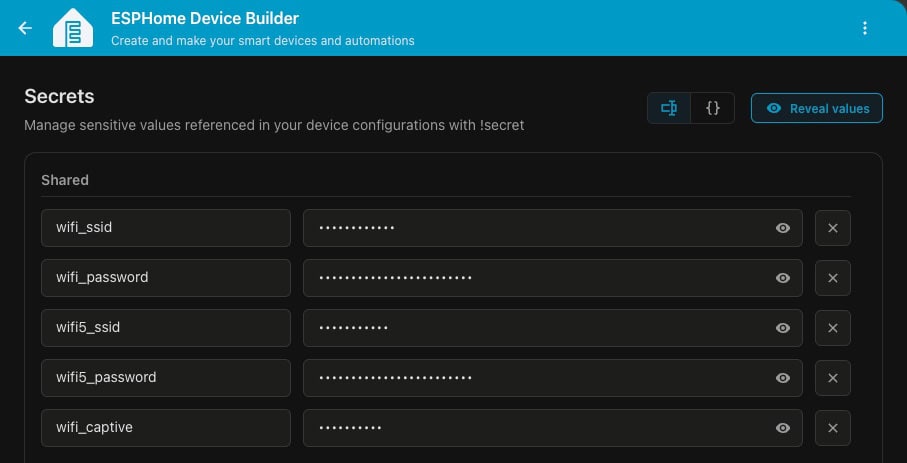
- After it’s installed, go to the ESPHome Device Builder page and in the upper right corner of the screen click on the three dots and select Secrets.
- Enter your WiFi SSID and password.
- If you have a dedicated 5GHz WiFi network and will be using ESP32 devices that support 5GHz, create separate secrets (wifi5_ssid and wifi5_password).
- Modify the wifi_captive secret as you see fit.
- Click on Save.
Installing the IRK Capture Package
- Go to ESPHome Builder and in the upper right click on + Create device.
- Click Create new project.
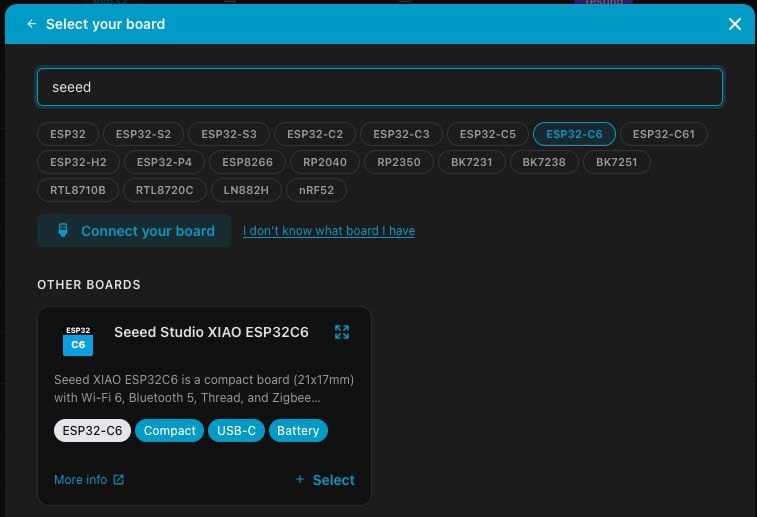
- Search for your particular ESP32 device. In my example I’ll be using a Seeed Studio XIAO ESP32C6. Click + Select.
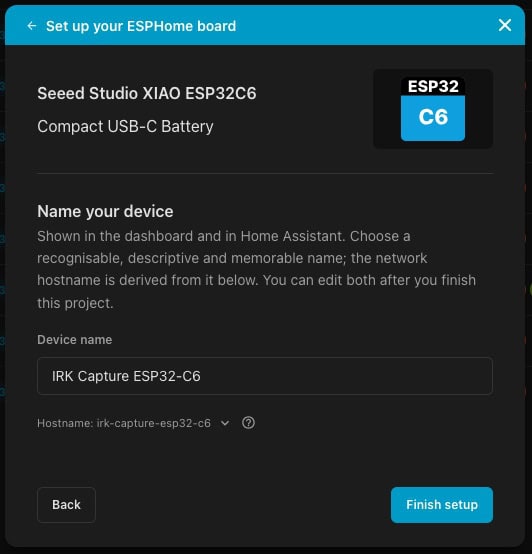
4. Enter the name of your new device. I’ll use IRK Capture ESP32-C6. Click Finish setup.
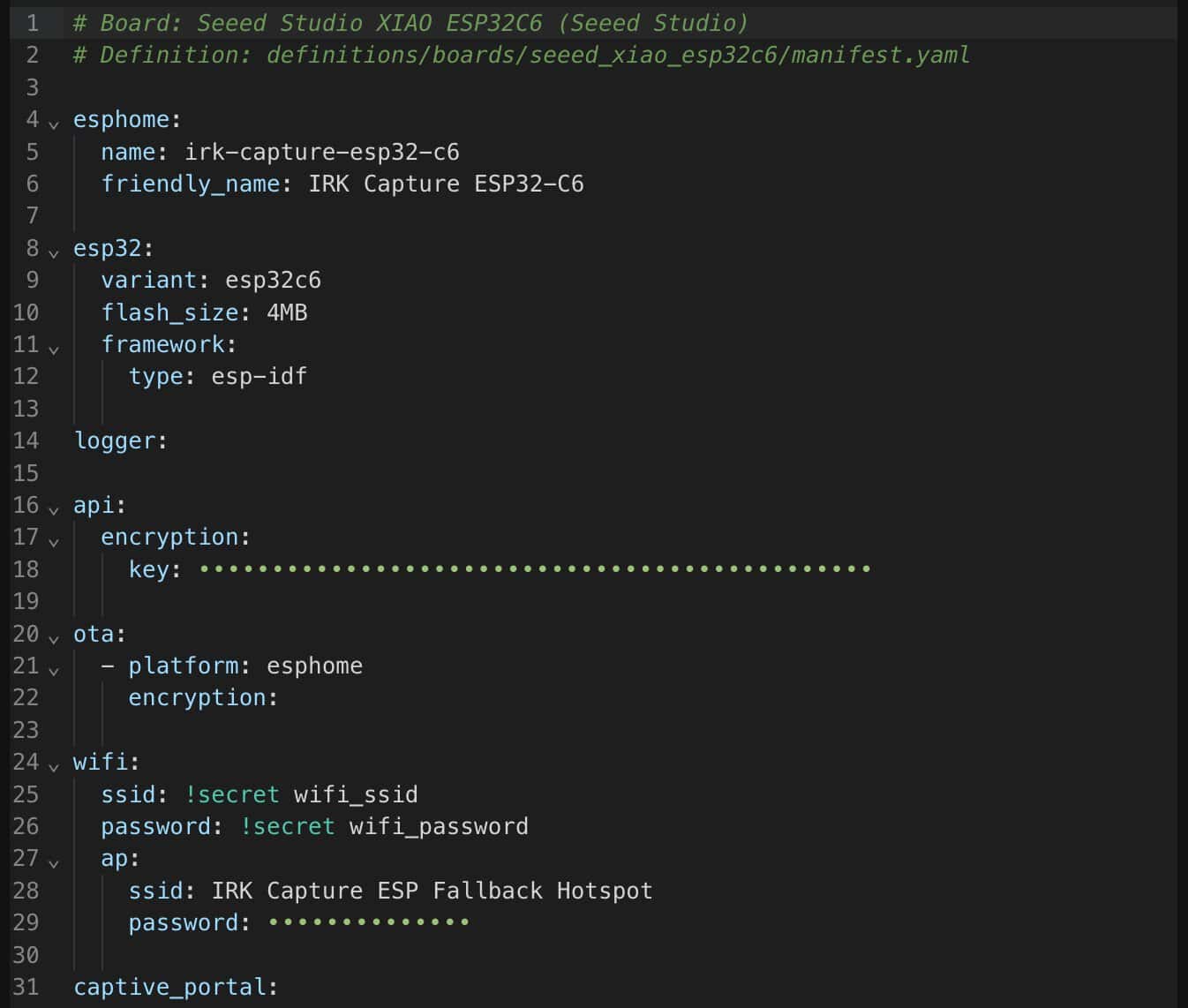
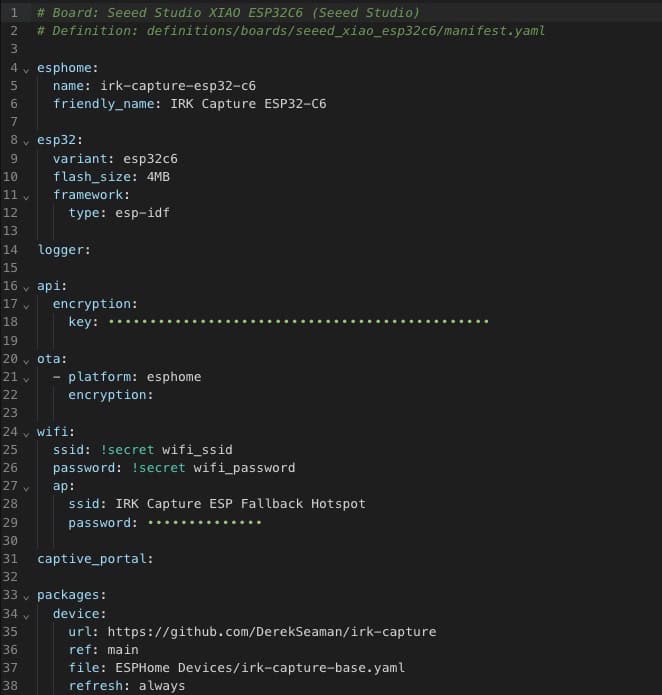
5. You should now see the raw YAML code for your device in the right-hand pane. Under OTA: add the encryption: option as shown below (line 22). You should now see a YAML configuration similar to the following:
6. Open my irk-capture-device-remote.yaml file, copy the contents to the clipboard and paste it at the bottom of ESPHome Devices builder YAML file. You should now have the contents on lines 33-38.
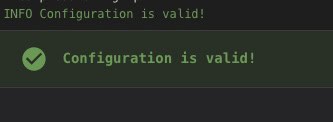
7. At the bottom of the ESPHome Devices builder pane look for any red boxes with errors. I would also suggest clicking on the three dots in the lower right side and select Validate.
8. Using Chrome, Microsoft Edge or Brave (or another browser that supports serial device connections via the browser) go to the ESPHome Device builder landing page in Home Assistant. Plug your ESP32 device via USB into your local computer.
9. Click on the three dots on the right side for your ESP32 device on the ESPHome device landing page and select Install.
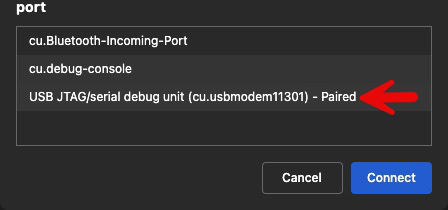
10. Select Plug into this computer. Select the serial port that looks like your ESP32 device. Depending on browser and OS, it may or may not be entirely obvious. If it’s not listed, click Cancel and follow the guide to download the appropriate drivers for your OS. On macOS Tahoe I didn’t have to install any drivers for a base ESP32, C3 or C6.
11. Wait for the flashing process to complete.
12. IMPORTANT: After the flashing is complete, either power cycle your ESP32 or do a ‘Restart Device‘ from the ESPHome device interface. This will randomize the BLE MAC address.
Seeed Studio XIAO Specific Configurations
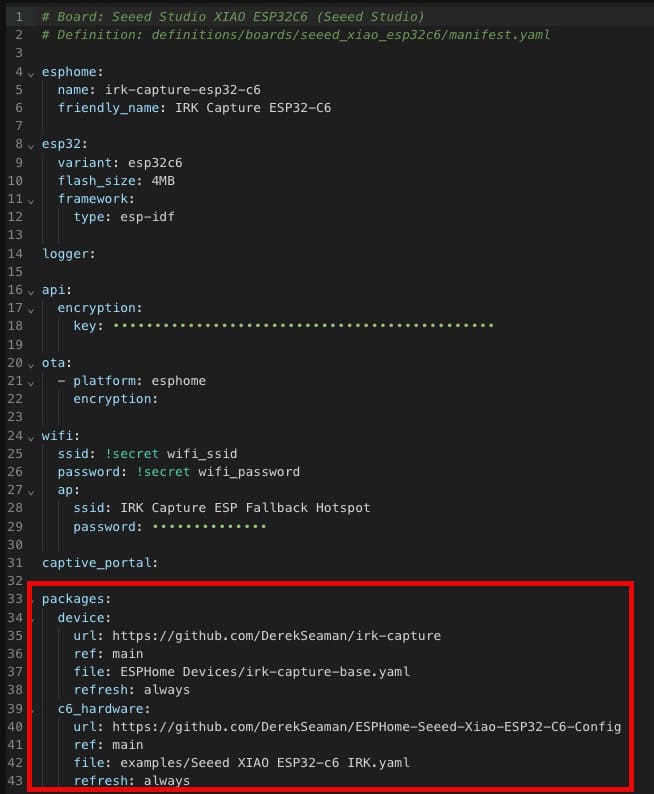
If you are using the Seeed Studio XIAO ESP32-S3, C3, C5 or C6 devices, then I have additional configurations for you. These enable external antenna support, LED status indicators and more. Just replace the whole packages: section with one of the following blocks. Note: Indentation may be off with a copy/paste. The ESPHome editor will warn you if this happens. See the screenshot below for an example of proper indentation.
					packages:
  device:
    url: https://github.com/DerekSeaman/irk-capture
    ref: main
    file: ESPHome Devices/irk-capture-base.yaml
    refresh: always
  s3_hardware:
    url: https://github.com/DerekSeaman/ESPHome-Seeed-Xiao-ESP32-s3-Config
    ref: main
    file: examples/Seeed XIAO ESP32-s3 IRK.yaml
    refresh: always
					packages:
  device:
    url: https://github.com/DerekSeaman/irk-capture
    ref: main
    file: ESPHome Devices/irk-capture-base.yaml
    refresh: always
  c3_hardware:
    url: https://github.com/DerekSeaman/ESPHome-Seeed-Xiao-ESP32-C3-Config
    ref: main
    file: examples/Seeed XIAO ESP32-c3 IRK.yaml
    refresh: always
					packages:
  device:
    url: https://github.com/DerekSeaman/irk-capture
    ref: main
    file: ESPHome Devices/irk-capture-base.yaml
    refresh: always
  c5_hardware:
    url: https://github.com/DerekSeaman/ESPHome-Seeed-Xiao-ESP32-C5-Config
    ref: main
    file: examples/Seeed XIAO ESP32-c5 IRK.yaml
    refresh: always
					packages:
  device:
    url: https://github.com/DerekSeaman/irk-capture
    ref: main
    file: ESPHome Devices/irk-capture-base.yaml
    refresh: always
  c6_hardware:
    url: https://github.com/DerekSeaman/ESPHome-Seeed-Xiao-ESP32-C6-Config
    ref: main
    file: examples/Seeed XIAO ESP32-c6 IRK.yaml
    refresh: always
Using the IRK Capture Package
In Home Assistant go to Settings -> Devices & Service -> ESPHome. Your new ESP32 IRK Capture device should be available to add. After it’s added, click on it from the list of ESP32 devices. When you open the device you should see a screen similar to the one below, except that the IRK values will be blank.
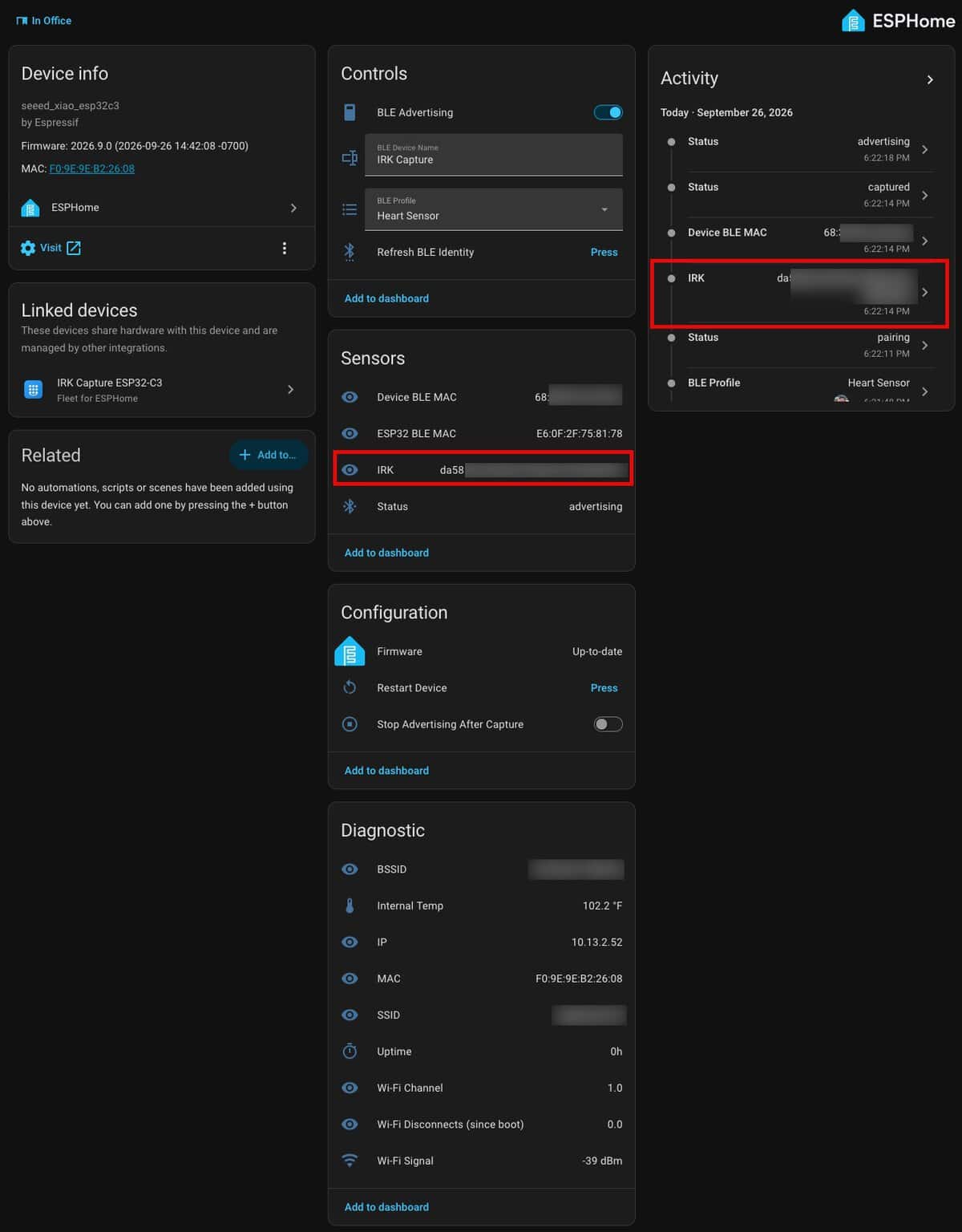
Depending on the device you want to capture the IRK from, the process varies. In this post I’ll cover Apple devices, Android phones and (some) Android watches.
Apple Devices (iPhone, Watch, iPad), GrapheneOS
- Ensure the “Heart Sensor” profile is selected in the BLE Profile drop down on the ESPHome device page. If it’s not selected, select Heart Sensor and wait 20-30 seconds for the ESP32 to reboot. After the reboot the ESP32 BLE MAC will change.
- Open Bluetooth settings on your device and look for the advertised device. The default name is “IRK Capture“.
- Tap on the device name to pair. Depending on the device/OS, pairing may not complete or show as not connected. This can be normal. If you device is not showing the advertised name, press the Refresh BLE Identity button, then toggle Bluetooth off and on. Pair to the newly advertised name.
- To view the captured IRK check the ESP32 logs in ESPHome Device Builder or view the “IRK” text sensor in Home Assistant.
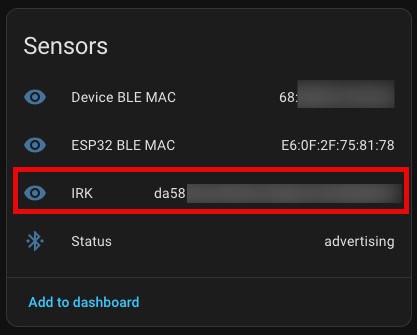
5. Important: Forget or unpair the “IRK Capture” device on your phone or watch.
Android Phones
- Ensure the “Keyboard” profile is selected in the BLE Profile drop down on the ESPHome device page. If it’s not selected, select Keyboard and wait 20-30 seconds for the ESP32 to reboot. The ESP32 BLE MAC will change after the restart.
- Open Bluetooth settings on your Android phone and look for “Logitech K380“.
- Tap on the device name to pair. Depending on the device/OS, pairing may not complete or show as not connected. This can be normal.
- To view the captured IRK check the ESP32 logs in ESPHome Device Builder or view the “IRK” text sensor in Home Assistant.
5. Important: Forget or unpair the “IRK Capture” device (or whatever name you used).
Android Watches
Android watches can be a tough nut to crack, as some need ‘reverse’ pairing, which my module does not support. By reverse pairing I mean that your ESP32 device would need to accept a pairing request from your Android watch. This is ‘backwards’ from how most devices pair and is unsupported by my package. Some watches will need the Gear Tracker II app to be running. You can first try it without the app running and see if it works.
- Install the app “Gear Tracker II“ on your Android watch.
- Ensure the “Heart Sensor” profile is selected in the BLE Profile drop down on the ESPHome device page. If it’s not listed, select it and wait 20-30 seconds for the ESP32 to reboot. The ESP32 BLE MAC will change after the reboot.
- Open the Gear Tracker II app on your watch and pair it to the advertised ESP32 device name (IRK Capture).
- To view the captured IRK check the ESP32 logs in ESPHome Device Builder or view the “IRK” text sensor in Home Assistant.
- Important: Forget or unpair the “IRK Capture” device (or whatever name you used).
Home Assistant Private BLE Integration
In order to use the captured IRK within Home Assistant, you need to use the Private BLE Device integration.
- In Home Assistant go to Settings -> Devices & services.
- Click on Add integration and search for Private BLE Device. Click on it then paste in your captured IRK.
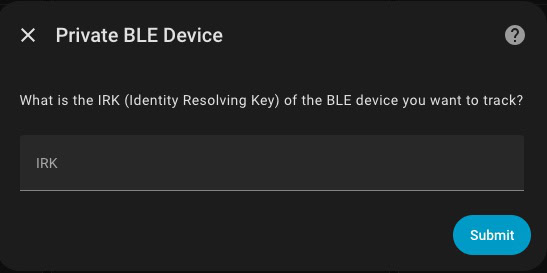
3. If you are using packages like Bermuda BLE Trilateration, your device will now show up as available.
Troubleshooting Tips
The most common issue I’ve seen is when adding the captured IRK to the Private BLE Device integration you get the following error:
The Provided IRK does not match any BLE devices that Home Assistant can see.
This is most likely due to using an Android device which strictly limits how often it emits BLE advertisements. Depending on the device or OS version there may be settings to change this behavior. The Private BLE Device integration will only accept IRKs for devices that it actively sees as advertising.
If you run into issues capturing your IRKs, surf over to my IRK Capture for ESPHome page on Github and scroll to the bottom for advanced troubleshooting tips. If all else fails and you can’t get it to work, you can open an Issue on my Github page.
Web IRK Capture Wizard
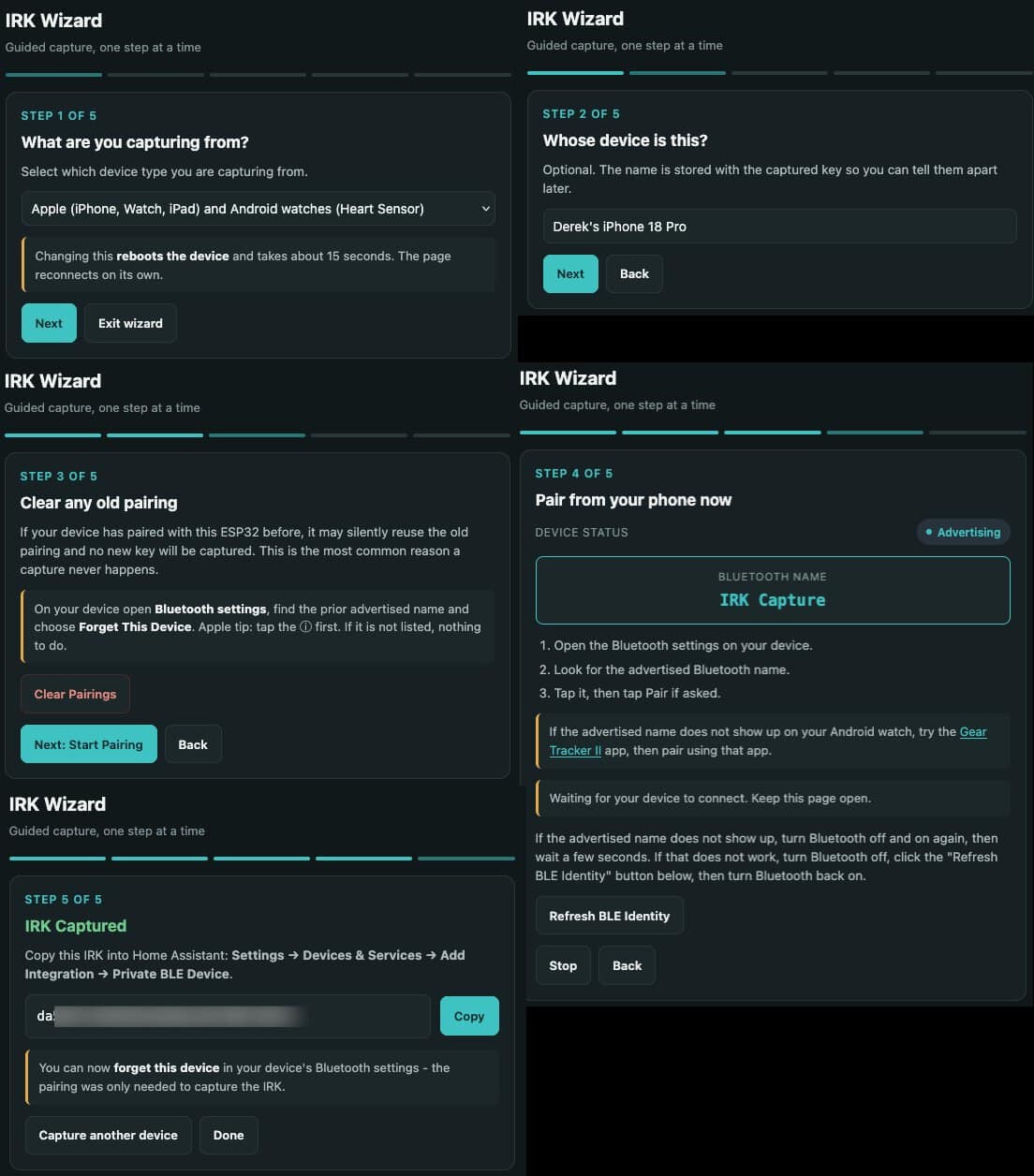
Starting with version 1.7.0 of my IRK Capture package I’ve added an optional Web IRK Capture Wizard. The optional wizard package adds a standalone web page on port 8080, alongside the standard ESPHome web interface. It offers two ways to capture:
- Express Capture: Work from one screen. Select your device type, add an optional label such as “Derek’s iPhone,” and pair with the Bluetooth name shown on the page. Your captured IRK appears in the results with a Copy button.
- IRK Wizard: Follow five steps to select your device type, add an optional label, clear an old pairing, pair with the ESP32 using device-specific instructions, and copy the captured IRK into Home Assistant.
The page shows the current Bluetooth name, BLE profile, ESP32 BLE MAC, and capture status. Selecting a device type chooses the appropriate profile; if that requires a reboot, the page shows the restart progress and reconnects automatically.
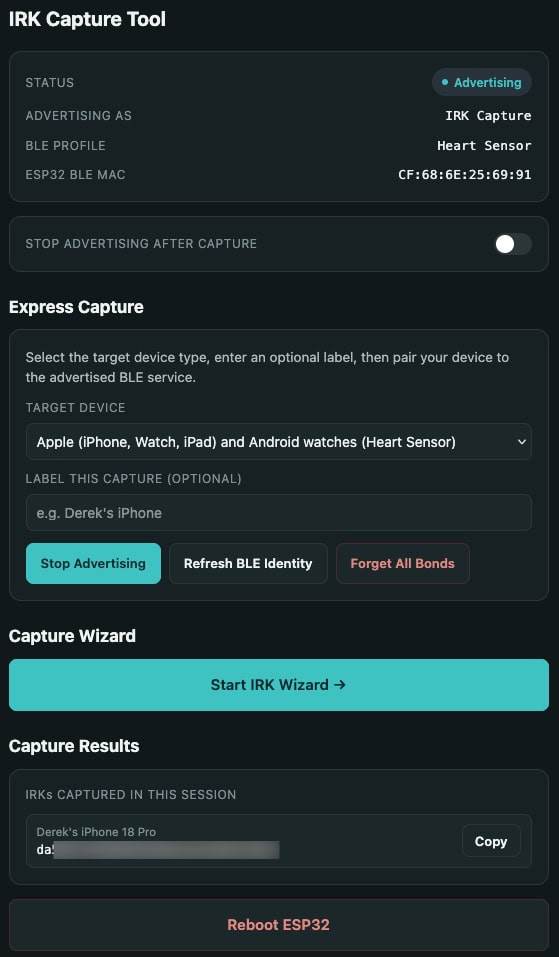
If you opt for the IRK Wizard you will be guided through the process of selecting your device type, adding an optional label, clearing any old pairing, pairing with the ESP32, and copying the captured IRK into Home Assistant.
Summary
If you are familiar with ESPHome, then using my IRK Capture package should be fairly straight forward. If you are brand new to ESPHome and flashing ESP32 devices, there is a minor learning curve. But hopefully this post, along with my Github repo, will enable you to capture your Bluetooth IRKs so that you can do room-level presence detection with Home Assistant.




At section “Using the IRK Capture Package” I ran into a problem. As there is no api section in the yaml file, HomeAssistant detected the device, but could not add it. Did you miss the api section? You do have the api_key in the substitutions. And what about the ota section?
It’s on my list to update the post with the new ESPHome management interface. The API section is needed.