This blog post will walk you through updating the Aqara FP300 firmware when using it in Zigbee mode with Home Assistant. The process is a little cumbersome, as you can’t (yet) do it directly in Home Assistant via Zigbee2MQTT. As of January 18, 2026 we are now on firmware 5841.
Towards the end of 2025 Aqara released the FP300, their brand new battery powered presence sensor. It combines PIR (passive infrared) and mmWave sensing to provide true presence detection vs. basic motion detection. For my full review, check out this post: Aqara FP300: The Ultimate Presence Sensor (Home Assistant Edition)
Since the FP300’s launch, Aqara has released new Zigbee firmware. Zigbee2MQTT doesn’t yet currently support OTA firmware updates on the FP300. This means you must use the Aqara app to update the FP300 firmware, one by one. However, this process is not entirely clear. This post walks you through the full firmware update process, and it preserves all of your Zigbee2MQTT and Home Assistant settings! Basically what we do is flash the FP300 to the Matter firmware then flash it back to Zigbee.
Update May 30, 2026: Aqara has released new Zigbee firmware 6542. Hopefully this will be available via Zigbee2MQTT, but until then the process below will work.
Updating Aqara FP300 Zigbee Firmware
Tips:
If you are updating multiple FP300s, I suggest force quitting the Aqara app after you successfully upgrade each device. This can fix some discovery bugs that I ran into on my iPhone.
Try and complete each step in the process as quickly as you can. This can avoid pairing mode timeouts.
Only when the FP300 is slowing pulsing purple is it in pairing/discovery mode.
Open the Aqara app. In the upper right tap on the plus icon and select Add Accessory.
On the FP300 hold the reset button until the blue light flashes rapidly (about 5 seconds). Immediately release the button.
Wait a few seconds and see if it starts pulsing purple. If it is pulsing purple, give it a few seconds for the Aqara app to discover it.
If it not pulsing purple, repeat the reset procedure again and wait for it to slowly pulse purple.
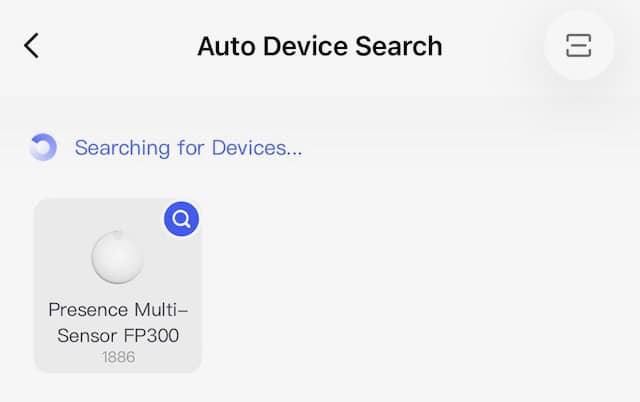
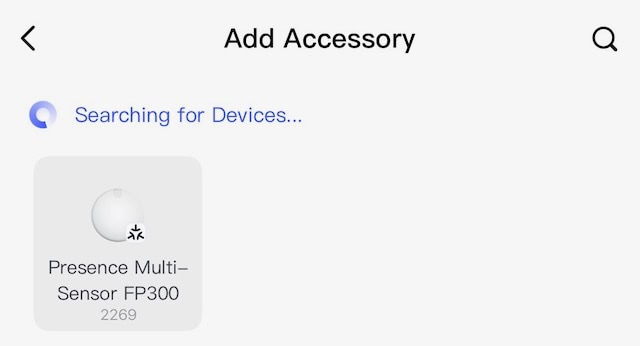
At the top of the screen in the Aqara app it should show your FP300. Tap on Presence Multi-sensor FP300. If it doesn’t appear after ~30 seconds, you might want to force quit the Aqara app and go back into Add Accessory mode.
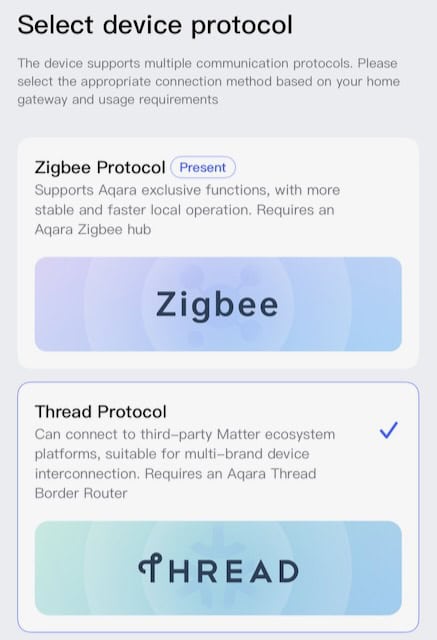
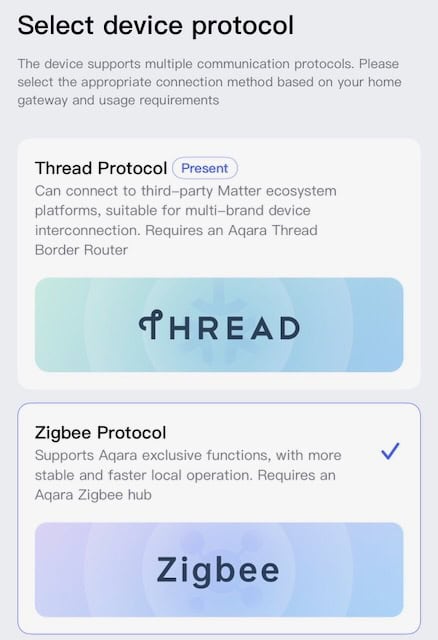
5. Tap on the Thread Protocol option, then tap Next.
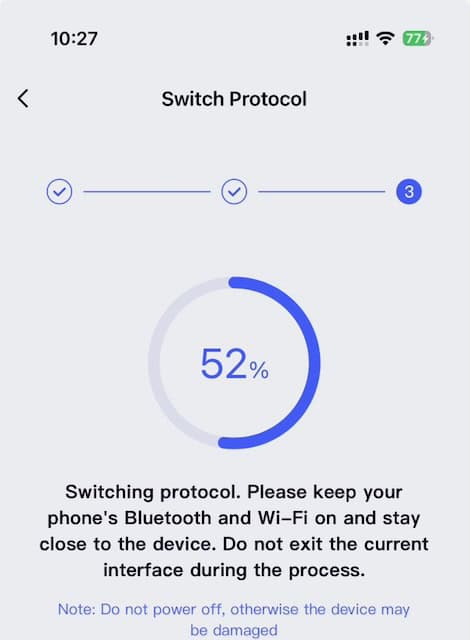
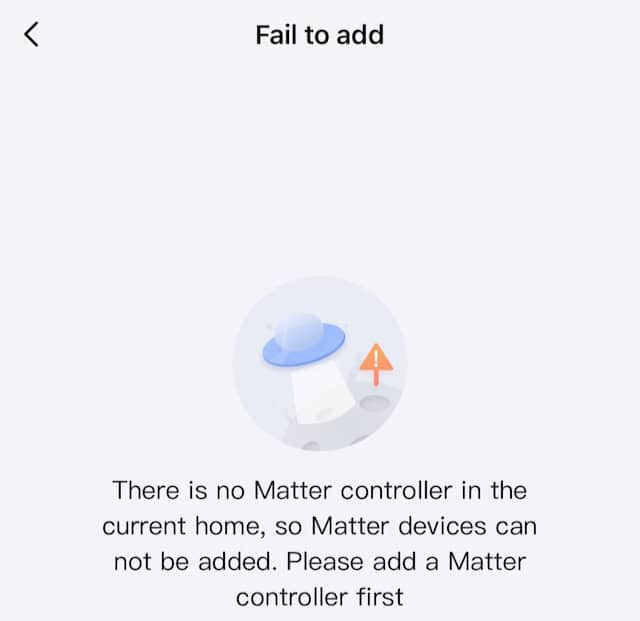
6. Tap Switch and wait for the two step firmware update process to complete. DO NOT EXIT THE AQARA APP while the update is happening or you may brick your FP300. 7. After the update is complete you will see a message about no matter controller is available. Tap Exit.
8. Navigate back to the Aqara app main landing page. 9. Tap the plus icon in the upper right then Add Accessory. 10. Wait for the FP300 to be discovered at the top of the screen. Tap on it. Remember, the FP300 must be pulsing purple to be discovered.
11. Make sure ZigbeeProtocol is selected and tap Next. Tap Switch. 12. Wait for the two step firmware update process to complete. DO NOT NAVIGATE AWAY FROM THE AQARA APP.
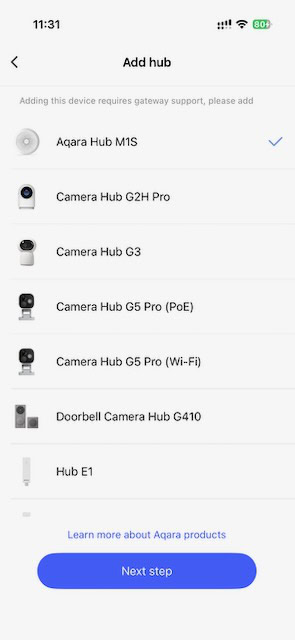
13. After the update is completed you may be prompted to add a hub. Exit this workflow.
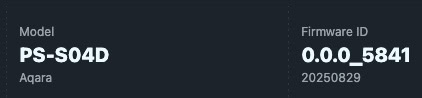
14. While the FP300 is pulsing purple go to Zigbee2MQTT click on Permit join. Wait a few seconds, and the FP300 should seamlessly ‘rejoin’ your Zigbee network with no loss of settings in Z2M or Home Assistant. 15. Verify the firmware has updated to at least 5841. It may take a few minutes for the firmware version to update.
16. If the firmware version does not update after a few minutes, perform a FP300 device reset and put it back into pairing mode. In Z2M turn on Permit Join again and see if it will now update.
Summary
It would be great if Zigbee2MQTT could support OTA updates for the FP300 like they do for other devices. But until that support happens, the procedure I outlined above should do the trick. I haven’t noticed any real differences on the new firmware, but I always like keeping my devices up to date. If you have a lot of FP300s it can be a bit of time sink. However, none of my FP300s were bricked in the process and once I nailed the procedure, it was very reliable.
I’m on the new firmware but the minimum absence time still appears to be 10 seconds (in Z2M). I thought they had improved this to allow up to a 1 second absence delay?





Thank you! I think this will resolve my disappointment with this device.
Thanks for the great guide.
I’m on the new firmware but the minimum absence time still appears to be 10 seconds (in Z2M). I thought they had improved this to allow up to a 1 second absence delay?
Unfortunately the lowest I’ve seen is 10s.