If you’ve made it this far, congrats! We are now ready to Install vCenter Server 5.1 Update 1! Yes in vSphere 5.1 there is A LOT of prerequisite work to do before you can start the vCenter Server installation. Part 6 of my series showed how to configure the vCenter and VUM SQL databases and the vCenter DSN. Now that all of the pre-reqs have been completed, we can now install vCenter Server 5.1 Update 1!
Before we get started, listed below are the other related articles in this series:
Part 1 (SSO Service)
Part 2 (Create vCenter SSL Certificates)
Part 3 (Install vCenter SSO SSL Certificate)
Part 4 (Inventory Service Install)
Part 5 (Inventory Service SSL Certificate)
Part 6 (Create vCenter and VUM Databases)
Part 8 (Install Web Client)
Part 9 (Optional SSO Configuration)
Part 10 (Create VUM DSN)
Part 11 (Install VUM)
Part 12 (VUM SSL Configuration)
Part 13 (VUM Configuration)
Part 14 (Web Client and Log Browser SSL)
Part 15 (ESXi Host SSL Certificate)
—
UPDATE 4/28/2013: I removed the SSL certificate pre-population steps, as using the VMware vCenter Certificate Automation tool is a much better option. You do that post-install, after all the components have been installed with self-signed certificates.
—
Install vCenter Server 5.1 Update 1
1. In Part 1 I created a service account that the SSO service used, and for the sake of simplicity I’ll use the same service account for the vCenter Server service. Login to your vCenter server as the service account. It should already have local admin rights on the vCenter server. Launch the vSphere 5.1 installer menu and select VMware vCenter Server and start the installation.

2. Select the appropriate language, read through all of the patents, EULA, and enter a license key if you have one.
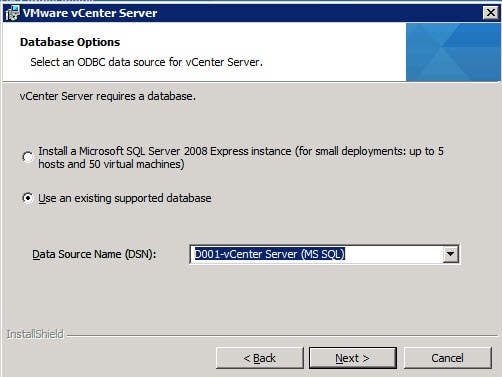
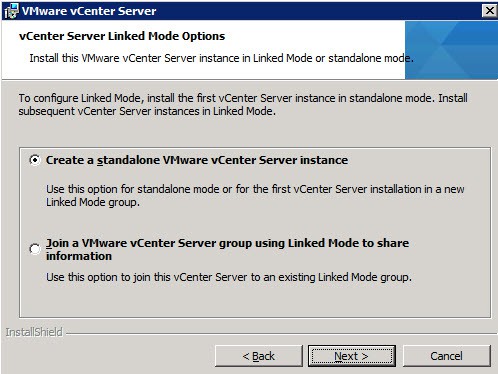
3. On the Database Options screen you should select the second option then, if all went well, find your vCenter DSN from the drop-down menu.
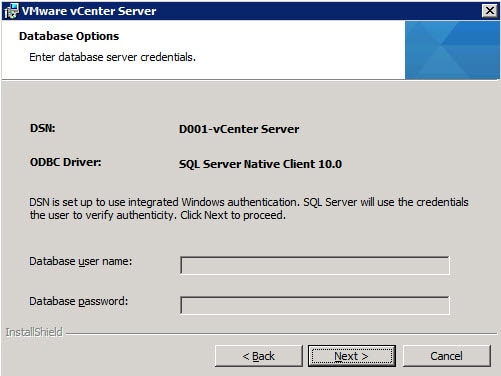
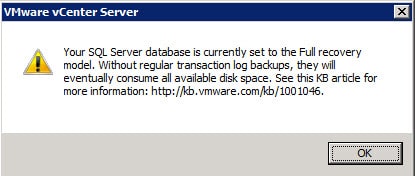
5. You will likely see this warning message about the SQL database in full recovery mode, and that it may consume a lot of disk space without regular backups. This is normal and do NOT be alarmed. You ARE doing regular SQL backups right?
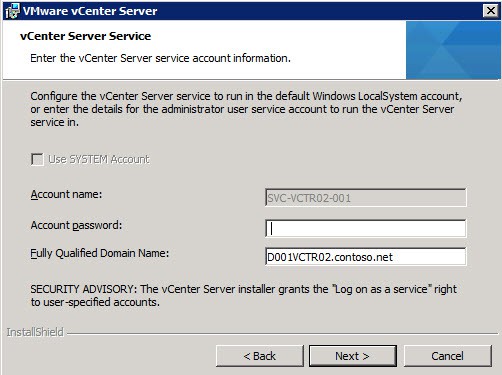
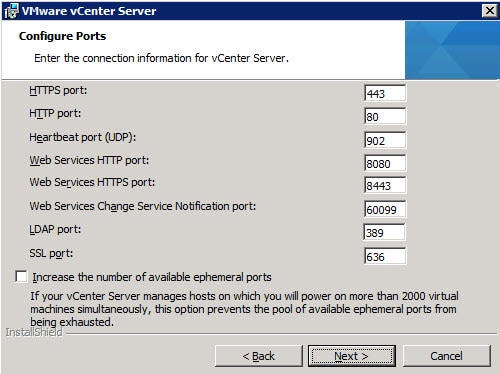
8. All of the default port numbers are fine, and for small environments we don’t need to increase the number of available ephemeral ports. If you will be powering on more than 2,000 VMs, then check the box.
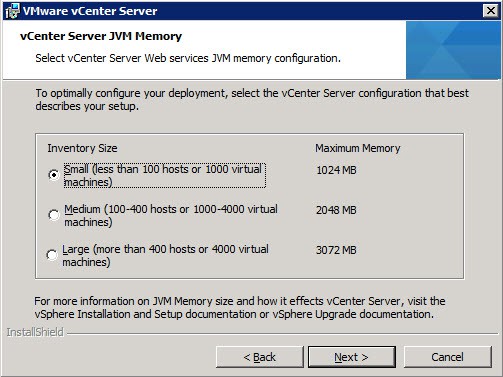
9. JVM memory is an important configuration parameter, so carefully choose the right value. It doesn’t hurt to select a larger value, assuming you have adequate memory assigned to the vCenter VM.
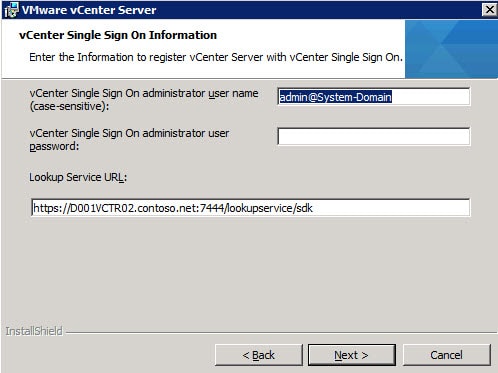
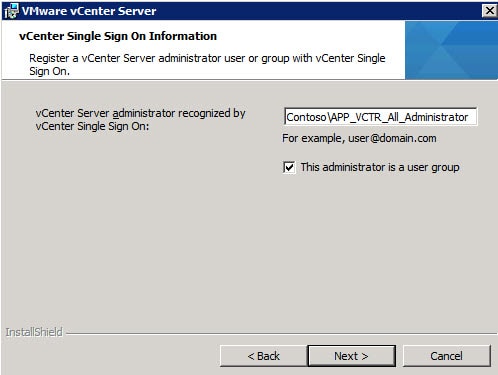
11. At this prompt you need to enter the group or user that will be recognized by the SSO service as the vCenter administrator. If you installed the SSO service in High Availability mode, then you will probably get an error “Wrong Input – either a command line argument is wrong….” if you try and use the “Administrators” group. So I would create an AD group that you want to use. Following my RBAC naming convention I specified the appropriate AD group. Use whatever group name you wish. The wizard will validate that it exists.
Note: If you get suck at this point in the installer, check out the reader feedback below. Ben Hicks and John have some great tips on possible solutions.
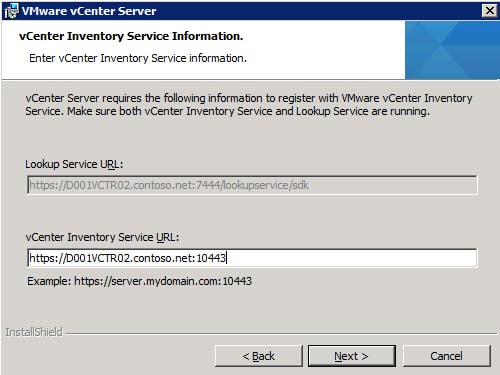
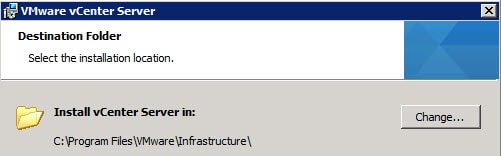
14. Per a VMware KB article you need to fix the ADAM SSL port registry type. To fix this issue navigate to:
HKLM\SYSTEM\CurrentControlSet\Services\ADAM_VMwareVCMSDS\Parameters
Delete the Port SSL key and recreate it as a 32-bit DWORD with a decimal value of 636. Note: Per reader feedback, if you are using Linked Mode, use a different port number (above 1025) for the Port SSL, otherwise there will be a conflict.






Terafirm,
Excellent to know! I’m trying a fresh install as well, each with different certs from my 2008 R2 CA. I’ll see how that goes!
Terafirma, yes now that you point that out, I found that in the VMware PKI Guide. I’ll amend my post.thanks for catching that!
Got Web-Client going turned out to be just not waiting long enough for the service to start and compile its keystore. (me getting frustrated and impatient)
Only annoying thing is Web-Client can only have its cert updated by putting it in the ProgramData\vSphere Web Client\SSL\ folder before install as the register-sso scripts that VMware reference don’t actually exist!!
I must say VMware really dropped the ball on SSL certs this release bring on vCertManager from Michael Webster
All that is left now is Orchestrator.
Derek,
thanks for your documnet. I try the best from your doc and it come to the vsphere server installation almost done the system come up the error 26002 setup fail to register VMware vCenter server to VMwar vCenter Inventory Service. I wonder you see this error before. need some help. Thank again!
Anonymous: Yes, I’ve run into the exact same problem and have an open case with VMware tech support. There is wide spread frustration in the community with trying to get SSL certs working. For now I’d skip the trusted SSL certificate generation and go with the vanilla install. As reliable solutions emerge I’ll update my posts with better instructions.
Anonymous, you can work around the 26002 setup failure by skipping Part 5, replacing the Inventory service SSL certificate. You can replace the SSO certificate and the install will continue as one would expect. I’ll keep researching the Inventory service SSL problem.
How do I change the vCenter SSL certificates?
Using custom SSL certificates in vCenter 5.1 is fucking pain.
Hi Derek, appreciate all your patience & time in writing these great posts! Just a quick question from my end: Our’s is a small environment running with Vcenter 4.1, SQL 2005 express & Six ESX 4.1 hosts.
Planning to perform inplace upgrade of vCenter 4.1 to 5.1 using Simple Install Option & SQL 2008 R2 Express (bundled along with vCenter). Do you think it should be straight forward or any hiccups which I need to work on before proceeding..? Thanks for your time!
I haven’t done in-place upgrades, and given the problems with 5.1, I would expect some hiccups. VMware is rumored to be releasing an update of some time this month to address the SSL problems. So personally I’d wait on the patch/update before upgrading. If your vCenter/SQL/Etc are on one VM, then just snapshot the VM and see how the upgrade goes. If it goes south, just unsnapshot.
Derek, how do you log into the machine with service account as that account was supposed to be just for services and shouldn’t be able to log-in? I can’t make it work…
Thanks.
A service account is no different from a regular user account in AD. The service account must have local admin rights on the vCenter server. So once you put the service account in the local admins group on the vCenter server, you should be able to login with no problem.
Derek
i have added the administrator as a single user in step 11, and modified the _administrators_ group and added other AD accounts to it, but the users cannot login neither to the vSphere client nor to the web client.
how can i modify the users in the administrator (under SSO users and groups) role or create a new role with admin privileges and add the users to it.
please help and advice.
Thank you for your extensive instructions on how to install the new vCenter server 5.1. They have been very helpfull to me.
Specially after one of my production vCenter servers crashed last weekend. With the exact same symptoms as the test vCenter server that crashed after replacing the SSL certificates. An empty VPX_ACCESS table and a vCenter server service that would start and immediately stop. Even though I didn’t touch the certificates, I just patched and rebooted it. I managed to fix it, by reinstalling the vCenter server service and changing the default admin group added and the default SSL port. Since the server allso had the SSL port value as a REG_SZ in the registry. In our case however, since it was (is) a server in linked mode, I had to change the port to 1025 instead of 636 as mentioned above in point 14. Because Linked mode has SSL port 636 in use for it’s local instance (http://kb.vmware.com/selfservice/microsites/search.do?language=en_US&cmd=displayKC&externalId=2031843)
Maybe you can add that to point 14, when you use linked mode you should change the SSL port to 1025 or above.
Hi Derek,
Great tutorial. I have a quick question. After finishing vcenter installation I couldn’t start the service. I’ve found the following error message:
error ‘Default’] [0] error:0906D06C:PEM routines:PEM_read_bio:no start line
error ‘Default’] [1] error:0906D06C:PEM routines:PEM_read_bio:no start line
error ‘Default’] [2] error:02001002:system library:fopen:No such file or directory
error ‘Default’] [3] error:2006D080:BIO routines:BIO_new_file:no such file
error ‘Default’] [4] error:0B084002:x509 certificate routines:X509_load_cert_crl_file:system lib
error ‘Default’] Failed to initialize the SSL context: SSL Exception: error:0906D06C:PEM routines:PEM_read_bio:no start line
Do you have any ideas?
@Mark: I would review the certificate files and ensure they have the proper start/end headers. Sounds like malformed certificates to me.
I had the exact same error and even opened a case with VMware, but I have managed to fix this myself.
Following every guide I could find they kept saying to use Openssl-Win32. I tried several times to create the certificates and it kept giving me this error.
I ended up humouring myself and installing OpenSSL-Win64 1.0.1c and low and behold, vCenter now happily accepts the pre-staged SSL Certificates.
Give that a try, might work for you.
I am still battling with the vSphere Web Client tho. I keep getting the yellow warning:
Failed to verify the SSL certificate for one or more vCenter Server systems:
https://(vcenterserver URL):443/sdk
Check the vSphere Web Client Administration tool and make sure that the SSL certificate is installed.
Still working on this one, hopefully VMware can offer me something. I followed KB2036505 but still no luck.
The whole thing that just annoys me is if VMware are pushing for everything to be web based they MUST provide an easier way to generate CSRs and import the signed certificates. It’s just crazy in 2012 we are still fighting this stuff.
Hi,
I found the Problem. I had an OpenSSL error, so the .pfx file was empty.
After recreating the pfx file the webservices started successfully.
Looking for some help here, running thru your install guides…WHICH ARE FANTASTIC BTW…but am running into some issue that hopfully someone can help me out on. Installing on a fresh, brand new environment…vCenter / SSO etc does not exist so no upgrade…just a straight forward install from scratch environment. Here are my issues.
1. SSO – As some earlier in the replies stated: Getting the following error when running “rsautil manage-oc-administrators -a list” “Error: Bean (PrimaryCommandTarget) initialization failure java.io.IOException: Invalid keystore format” But no resolution or a fix
2. At the vCenter install. I am at the “vCenter Server administrator recongnized by vCenter Single Sign On” section, where it prompts me to enter a group name. I have tied everything local AD group / Global AD group / Local user account etc. But keep getting “The user or group that you are trying to assign vCenter Server administrative privileges to does not exist”…I am suspecting the “does not exist” means does not exist in SSO? Any help would be greatly appericated.
With regards to the “The user or group that you are trying to assign vCenter Server administrative privileges to does not exist”…error that I was getting. I read a post to try to use [email protected]…and surprise surprise, that worked for me.
Hi,
Thank you for your post. It is really helpful. Keep it up1
Cheers
A lesson learned: I received the dreaded Error 26002 error during my first install even when using the newer version of the vCenter install media. In my case the issue seems to have been caused by having the Web Server Role installed on the server. I know you’re not supposed to have IIS on the box but I had the default web site stopped and disabled so I assumed it wouldn’t conflict. Apparently it conflicts anyway, because the only way I was able to successfully install vCenter was to remove the Web Server role completely from the server. It is not enough to just stop or disable it. Hopefully this helps someone else.
About Error 26002. I got it as well although I followed all instructions in your great posts.
After some hair polling it turns out that vCenter Server, unlike all other components, doesn’t like certificates that have any text before the start certificte marker. If you sign your certificate requests using openssl ca like I do then by default openssl adds the text form of the certificate before the encoded form in the resulting rui.crt file.
To get around this either edit the certificate in notepad and remove all the text before the start certificte marker. Or better yet add the -notext switch to the openssl ca command when signing the request.
During the step 11 of the installation I have tried to use domain account, domain group, local group, local account but still I get the following error “The user or group that you are trying to assign vCenter Server administrative privileges to does not exist”. Is there any way to resolve the issue. VM where I try to install vCenter on is a part of windows domain
I have just managed to resolved this issue. When trying to install vCenter server, I was getting the “does not exist error”. I tried everything to resolve this with regards to formatting of names / local vs domain users and groups but to no avail. The solution was to install the web client before vCenter. Once you have the web client installed, you login as your admin@system-domain user and go to “Sign-on and discovery” and then configuration. You need to add an identity source that corresponds to your domain. Put in a domain controller server with the format of ldap://fqdn and enter the rest of the relevant settings.
*note* There appears to be a bug that resets the base group dn to that of the base user dn. Double check this if it fails.
Test the connection and save.
If you want to test the lookup manually before re-running the install – you can run the following commands:
******
set JAVA_HOME=c:\program files\vmware\infrastructure\jre
cd “c:\Program Files\VMware\Infrastructure\Inventory Service\sso”
regtool checkPrincipalExists -d https://INVENTORYSERVER:7444/lookupservice/sdk -u admin@system-domain -p YOURPASS -P [email protected] -g
*******
** The -g denotes a group – omit this if you want to lookup a user **
If this works, the installation should complete successfully.
Hope this helps.
-Ben
Hi and thanks so much for this information. It gives me way to troubleshoot that I would not have found on my own.
I might add that regtool.cmd command in the latest release (4/25/2013) is fundamentally flawed. The output I get is:
FilesVMwareInfrastructurejre"" was unexpected at this time.
One of our java guys made a modification to the file with me. It needed two extra quotes. Now it runs but the sll handshake fails with the following error.
com.vmware.vim.vmomi.core.exception.CertificateValidationException: Server certi
ficate assertion not verified and thumbprint not matched
Return code is: SslHandshakeFailed
1
I am still working the problem. Any ideas would be appreciated and I will try to update if I find out what the issue is. I can't imagine I am the only one getting flawed output using the regtool command. Thanks!
Great and great tuto…
I meet a problem to register vCenter Server Administrator group. I made a group (netgus\APP_VCTR_All_Administrators) and I receive a message as what It don’t find my group in my Active Directory. I have lost a step may be, but I found on the Internet this article: http://www.vblog.ch/vcenter-upgrade-5-0-u1-to-5-1/
Have you a idea
I found the problem…
First, you should not use another language as English, even if VMware propose to you your language (french for me)
Second, when I installed SSO, I received one error as “Error 29155.Identity source discovery error”. I had to install VMWare vSphere Web Client and added my AD identity source, but If your OS language is in french, you will receive some strange errors as : “illegal character in scheme name at index 0”. If you use the english language, you’ll have no problem.
I have not been able to secure the channel between my databases and my vCenter with JDBC. I tried some combinaisons, but nothing works. Is-It possible to configure after? I don’t know.
Hi,
Derek, just would like to say that this blog is amazing, it is very detailed and thorough.
Just wondering if anyone can shed some light here. I’m trying to upgrade from 5.0U1 to 5.1 on a different box.
I saw the below from the official vmware Doc:
“You can migrate an existing vCenter Server to a different machine during an upgrade to version 5.0, and then perform an in-place upgrade from version 5.0 to version 5.1. See the version 5.0 vSphere Upgrade documentation.”
Has anyone tried a NON in-place upgrade to 5.1? If so, how did you manage to restore the 5.0 Database to 5.1? I believe this Derek’s blog creates a new database for the vcenter instead using the existing database.
Thank you,
Hi,
Thank a lot for this great article!
I realy could use some help here. When running the vCenter Servr install wizard I keep getting stuck at te “vCenter Inventory service information” window. Every time again I get the warning saying “Setup failed to validate VMware vCenter Inventory Service, error occured while talking…”. I really have no clue what could be the reason. Any assistance would be highly appreciated. Running installer v5.01b BTW. Cheers, B.
@OP: This page should become page 8, and page 8 should become this page. The web client needs to be installed prior to the vCenter Server installation. For those of you stuck a step 11, user Ben Hicks’ suggestion is the key. First, run his console commands and let it fail.Next, close the vCenter server install, go to page 8 of this guide: <a href="http://derek858.blogspot.com/2012/09/vmware-vcenter-51-installation-part-8_22.htmlhttp://derek858.blogspot.com/2012/09/vmware-vcent… />and install the Web client. Once installed, log into the web client user your “admin@System-Domain” account. The web address should be: https://localhost:9443/vsphere-client/ (use localhost as the name).Click the administration tab on the left side of the screen.Click on “Configuration” under Sign-On and Discovery.Click the green plus sign in the top pane which should open “Add identity source”For me, using Windows active directory, select “active directory”.Name: your FQDN (johndball.com in my case)Primary server: ldap://fqdnSecondary server: ldap://fqdn (of your second DC)*I tried using ldaps (LDAP SSL) but was having a problem importing my AD server cert, so I just stuck with non-SSL LDAP authentication which workedBase DN for users: dc=yourdomain,dc=yourTDL (in my case dc=johndball,dc=com)Domain name: Your FQDN again (in my case johndball.com)Domain alias: Your netbios name (in my case JOHNDBALL)Base DN for groups: cn=users,dc=johndball,dc=com (I’m pulling groups out of my users container, not a special organization unit for groups)Authentication type: PasswordUsername: yourdomain\someaccountPassword: self explanatoryTest the connection. If it fails, check your server settings.Click ok. Go to the bottom pane, move your domain to the top using the arrows, hit the disk icon to save settings (click through any warnings). At this point, you SHOULD be able to re-run Ben Hicks’ command and succeed. If not, go to SSO Users and Groups on the leftClick __Administrators__ and select the “man” icon with the plus sign. For identity source, your domain should appear in the drop down. In my case, I added a special group for VM admins called, you guessed it, VMwareAdmins. Add that to the box and hit “search”.Add your group to the account. Log out and run Hicks’ command again. It should work (it did in my case).Restart the instructions on this page and the install should succeed (again, it worked in my case).
Hi John / Derek,
The install tip came direct from VMware tech support. I think the issue came about (in my case) from an incorrect reverse look-up on the VMs IP address. During the installation – it throws up an error about not being able to correctly resolve and that it may cause problems. My guess is that it uses the PTR record to locate the local domain name and from there a domain controller. If the look-up works correctly, this information is populated and the web client installation is not needed.
Either way, once this was all completed I had certificate problems when trying to export the SSO configuration (we have both an issuing and root CA that I think caused the problems). After trying for a couple of days to resolve I had to revert to 5.0 U2 – project timescales wait for no-man !!
Once again, excellent guide – thank-you for your time.
-Ben
This saved me, just wanted to give you the props that these instructions worked for someone else too 🙂
Has anyone run into an issue adding an AD Group as a member to the _Administrators_ Group in the last portion of John's instructions? I can search and add individual user accounts but I receive get the following error when searching
Error: exception during group search: (&(|groupType=-2147483640)(groupType=-2147483644)__(objectClass=group))
Derek,
I am looking for some advise concerning a ‘sort of’ upgrade.
I am installing 5.1 on a clean system using your instructions but I want to connect it to an existing 4.1 database. Parts 1-6 have worked beautifully so I want to continue along this path. When I install vCenter Server and connect to the existing db, an upgrade dialog is presented as expected. Once the upgrade starts, however, a SQL exception is thrown. Our environment is small; 6 hosts and about 50 VMs so I am wondering if I should continue to troubleshoot this problem or just create a clean database and re-add the hosts? Our 4.1 (upgraded from 4.0) did not have custom certs.
Thank you for the time that you put into this wonderful guide. It has probably saved me days of headaches so far.
How do you manually replace the vCenter Orchestrator SSL certs?
The VMware certificate automation tool v1.0 will replace the certificates. I haven’t looked into the full manual process, as VMware didn’t document that back when I first did the series. I cover the automation tool on my blog..just search my site for automation tool.
Good question. I now recommend everyone use the VMware vCenter Certificate automation tool, which does replace the Orchestrator certificate as well.
Tried using the automation tool but I get this: [.] ERROR: The last certificate in the supplied certificate chain is not a self-
signed authority certificate. Append the authority certificate to the chain file.
The cert chain (.pem) contains the leaf, sub, and root certificates in that order. Any suggestions?
I haven't tried the tool with sub CAs, so don't have any personal experience. Your file sounds right though. Might just flip the order around and see what that does for ya.
Derek,
I had used your 15 part doc earlier to create a VC5.1 installation with a MS CA assigned cert., Now I am doing a VC 5.1 Update1 install however I want to follow the manual process. I tried the VMware Tool and it got stuck half way making me start all over again. I see that on April 28th you updated the post and removed the pre-population of SSL Certs for Vcenter and VMware WebClient. Is it possible that I can access the older post somewhere with the steps.
Thanks
Subho
I have the full script here: https://www.derekseaman.com/2012/10/vmware-vcenter…
The issue I'm having is I can install vCenter Server and put in all of data points. It's start to install and when it get to the part where VMWare installs Orchestrator it just hangs. If I go to add remove programs Orchestrator is installed but the install program is hung. I have to CTL+ALT+Delete it to kill the process. I've tried uninstalling everything and reinstalling it, rebooting, older version installs, and all the same. I will say this though. One time when I install 5.0 before getting 5.1 It hung on Orchestator and I kill the install. After that everything was up and running VCenter Server and Orchestrator. However now nothing gets installed but Orchestrator. I have a case opened with VMWare however they are not getting back to me. Tried calling but no return call from them. Any assistance would be helpful.
My vCenter 5.1 Update 1 hung up at "Installing Orchestrator" as well. I followed this VMware KB Article and it allowed the installer to complete.
http://kb.vmware.com/selfservice/microsites/searc…
Here is a note for anyone that is configuring a multisite or HA SSO database – we did this for linked mode , but there are a couple other reasons you may do this as well –
make sure that you do not install the vmware Vcenter server as the network server – you will be locked out of Vcenter as the only user that will be granted rights – make sure that you are logged in as the user that the service will run under and when prompted make sure you choose to run the service as that user – this will force the install to prompt you for the user that needs to be granted rights
Hi Derek – thanks for great guide. Killing me getting this installed though. Trying the VCenter install jdbc connection is not working during the install:
[2013-06-26 23:49:50 INFO] Invoking testdbprops "C:UsersTEMPWU~1.000AppDataLocalTemp{A4400513-2688-45A9-8439-CA991F4E4106}VM2D39.tmp"
Testing DB connection from C:UsersTEMPWU~1.000AppDataLocalTemp{A4400513-2688-45A9-8439-CA991F4E4106}VM2D39.tmp: [2013-06-26 23:49:50 INFO] Config name=dummy
[2013-06-26 23:49:50 INFO] Property file=null
[2013-06-26 23:49:50 INFO] Loaded url from props=<not set>
[2013-06-26 23:49:50 INFO] Overrides=
[2013-06-26 23:49:50 INFO] prop:dbtype
[2013-06-26 23:49:50 INFO] prop:url
[2013-06-26 23:49:50 INFO] prop:driver
Error: SQL Server returned an incomplete response. The connection has been closed.
[2013-06-26 23:50:04 SEVERE] Error in invocation of testdbprops
com.microsoft.sqlserver.jdbc.SQLServerException: SQL Server returned an incomplete response. The connection has been closed.
at com.microsoft.sqlserver.jdbc.SQLServerConnection.terminate(SQLServerConnection.java:1368)
at com.microsoft.sqlserver.jdbc.SQLServerConnection.terminate(SQLServerConnection.java:1355)
at com.microsoft.sqlserver.jdbc.TDSReader.readPacket(IOBuffer.java:3280)
at com.microsoft.sqlserver.jdbc.TDSCommand.startResponse(IOBuffer.java:4437)
at com.microsoft.sqlserver.jdbc.TDSCommand.startResponse(IOBuffer.java:4389)
at com.microsoft.sqlserver.jdbc.SQLServerConnection.sendLogon(SQLServerConnection.java:2531)
at com.microsoft.sqlserver.jdbc.SQLServerConnection.logon(SQLServerConnection.java:1929)
at com.microsoft.sqlserver.jdbc.SQLServerConnection.access$000(SQLServerConnection.java:41)
at com.microsoft.sqlserver.jdbc.SQLServerConnection$LogonCommand.doExecute(SQLServerConnection.java:1917)
at com.microsoft.sqlserver.jdbc.TDSCommand.execute(IOBuffer.java:4026)
at com.microsoft.sqlserver.jdbc.SQLServerConnection.executeCommand(SQLServerConnection.java:1416)
at com.microsoft.sqlserver.jdbc.SQLServerConnection.connectHelper(SQLServerConnection.java:1061)
at com.microsoft.sqlserver.jdbc.SQLServerConnection.login(SQLServerConnection.java:833)
at com.microsoft.sqlserver.jdbc.SQLServerConnection.connect(SQLServerConnection.java:716)
at com.microsoft.sqlserver.jdbc.SQLServerDriver.connect(SQLServerDriver.java:841)
at java.sql.DriverManager.getConnection(DriverManager.java:582)
at java.sql.DriverManager.getConnection(DriverManager.java:185)
at com.vmware.vim.common.vdb.VdbDataSource.getConnection(VdbDataSource.java:84)
at com.vmware.vim.vimtool.dbprops.TestDbProperties.testConnection(TestDbProperties.java:70)
at com.vmware.vim.vimtool.dbprops.TestDbProperties.invoke(TestDbProperties.java:53)
at com.vmware.vim.vimtool.VimTool.invokeTool(VimTool.java:156)
at com.vmware.vim.vimtool.VimTool.main(VimTool.java:94)
Error in invocation of testdbprops: com.microsoft.sqlserver.jdbc.SQLServerException: SQL Server returned an incomplete response. The connection has been closed.
Google is proving fruitless when trying to resolve.
The ODBC connection is working and the SQL VC DB is online.
Could this be a certificate related error? I have created a set of SSL certs as per your guide but only replaced the SSO and IS certs (using the VMware tool).
FYI, step 14 has been resolved in vCenter 5.1 Update 1a
Hey Derek, I wanted to follow up with you. Since VMware's release of the SSL tool, the suggestions I mentioned in this posted about installing the client, making the necessary SSO changes, then installing vCenter Server was not needed in my case.
I guess some things changed in the back end of this vCenter release to no longer warrant configuring SSO through the web client then installing vCenter.
Thanks for keeping everybody in the loop with VMware's releases!