Welcome to a post which will let you easily update your VMware ESXi host SSL certificates. Last year when I was writing my 15-part vSphere 5.1 installation and configuration series I didn’t include instructions on how to replace the ESXi SSL certificate. That process hasn’t changed for ages, so I put it on the back burner. Now the time has come to show you part 15 of the vSphere 5.1 install series, which is a semi-automated method to replace your ESXi SSL certificates.
vSphere 5.1 has relaxed the ESXi host certificate requirements a bit by not requiring the dataencipherment and nonrepudiation key properties, which previous versions required. However, I’ve included them in my script in case you have any 5.0 or 4.x hosts. It won’t hurt to have these properties enabled on a ESXi 5.1 certificate though.
Basic requirements for the script are:
- ESXi 4.x or 5.x host(s)
- OpenSSL installed (0.9.8 or higher, 32-bit or 64-bit)
- Online Windows Enterprise Certificate Authority (2008 R2 or higher recommended)
- vSphere CLI (I’ve tested with 5.x)
- Properly configured Windows Certificate template (see blog post here)
- DNS “A” record for your ESXi host
- Existing D:\Certs directory
If your ESXi host is already managed by vCenter, the HA agent can get very confused by the new SSL certificate thumbprint. I would strongly suggest you first put your host in maintenance mode, remove it from the vCenter inventory, update the SSL certificate, reboot the ESXi host, then re-add it to the vCenter inventory.
Since the script includes the creation of the CSR, you will need to modify the basic attributes of the SSL certificate variables, as shown in red below. Once you’ve modified the variables for your environment, just open an elevated VMware vSphere CLI prompt (not just a regular command prompt) and type the script name followed by the FQDN of your ESXi server.
The script will create a CSR, submit the CSR to your MS online CA, download the new certificate, and upload it to your ESXi host. You will be prompted twice to enter the root credentials of your ESXi host. Now simply reboot your ESXi server, re-add it to your inventory, and you are done! Can’t get much easier than this folks. In my case the CA certificate life is shorter than what my certificate template requested, so I got a warning message.

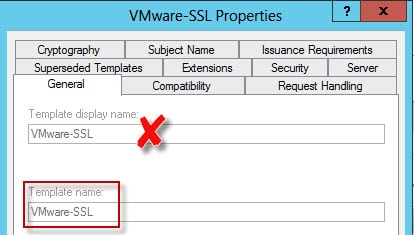
The script has some error checking, but it’s not super robust. You might get tripped up on the Cert_Template and CA_Name variables, so let me explain them. The Cert_Template is “template name” NOT the “Template display name”. While they are the same in my example, the “Template name” usually has spaces removed.
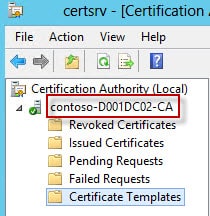
The CA_Name is NOT simply the hostname of your CA, but is the hostname of the CA AND the CA name which was configured during the CA installation process. You can find the CA name by opening the Certification Authority MMC and looking at the left pane.
Congratulations! You have now made it through the whole vCenter 5.1 installation process using trusted SSL certificates. Probably took way longer than you expected, and much more tedious than it should be. I would hope in vSphere v.Next that they overhaul what seems like a complete mess of internal handing of certificates. How about certificate revocation? How about the ability to completely remove a compromised certificate from all keystores?
@Echo off
 REM Change these variables for your environment.
 REM Do not put spaces between the = sign
 REM SSL Certificate Properties
 REM Country name must be exactly two letters

 Set countryName=US
 Set state=CA
 Set locality=San Diego
 Set organization=Contoso

 REM Certifiate Authority Properties
 Set Cert_Template=VMware-SSL
 Set CA_Name=D001DC02\Contoso-D001DC02-CA

 REM Existing parent path for the ESXi certificate directory
 Set Cert_Path=D:\certs

 REM
 REM -- Don't change anything below here --
 REM

 set ESXiConfig=esxi.cfg
 if [%1]==[] ; GOTO :ERROR
 if not exist %Cert_Path%\ESXi mkdir %Cert_Path%\ESXi
 if exist "D:\program Files (x86)\VMware\Vmware vSphere CLI\bin" Set CLI=D:\program Files (x86)\VMware\Vmware vSphere CLI\bin
 if exist "C:\program Files (x86)\VMware\Vmware vSphere CLI\bin" Set CLI=C:\program Files (x86)\VMware\Vmware vSphere CLI\bin
 if exist "c:\OpenSSL-Win32\bin\openssl.exe" Set OpenSSL_BIN=c:\OpenSSL-Win32\bin\openssl.exe
 if exist "c:\OpenSSL-Win64\bin\openssl.exe" Set OpenSSL_BIN=c:\OpenSSL-Win64\bin\openssl.exe
 FOR /F "Tokens=1 delims=." %%A IN ("%1") DO SET Hostname=%%A
 (
 Echo [ req ]
 Echo default_bits = 2048
 Echo default_keyfile = rui.key
 Echo distinguished_name = req_distinguished_name
 Echo encrypt_key = no
 Echo prompt = no
 Echo string_mask = nombstr
 Echo req_extensions = v3_req
 Echo.
 Echo [ v3_req ]
 Echo basicConstraints = CA:FALSE
 Echo keyUsage = digitalSignature, keyEncipherment, dataEncipherment, nonRepudiation
 Echo extendedKeyUsage = serverAuth, clientAuth
 Echo subjectAltName = DNS:%1, DNS:%hostname%
 Echo.
 Echo [ req_distinguished_name ]
 Echo countryName = %countryName%
 Echo stateOrProvinceName = %state%
 Echo localityName = %locality%
 Echo 0.organizationName = %organization%
 Echo commonName = %1
 ) >%Cert_Path%\ESXi\%ESXiConfig%
 %OpenSSL_BIN% genrsa 2048 > %Cert_Path%\ESXi\rui.key
 %OpenSSL_BIN% req -out %Cert_Path%\ESXi\rui.csr -key %Cert_Path%\ESXi\rui.key -new -config %Cert_Path%\ESXi\%ESXiConfig%
 certreq -submit -f -config "%CA_NAME%" -attrib "CertificateTemplate:%Cert_Template%" %Cert_Path%\ESXi\rui.csr %Cert_Path%\ESXi\rui.crt
 "%CLI%\vifs.pl" --server %hostname% --put %Cert_Path%\ESXi\rui.key /host/ssl_key
 "%CLI%\vifs.pl" --server %hostname% --put %Cert_Path%\ESXi\rui.crt /host/ssl_cert
 Exit /B
 :ERROR
 Echo Please specify ESXi server FQDN (e.g. ESX01.domain.net).





Excellent post and very compact and nice script to allow automating the generation and deployment of certificates to vSphere ESXi hosts.
I would recommend adding the following to the top of the script that generates the openssl.cfg file. This eliminates a potential error you may see with openssl when generating the csr request on the random file.
Echo HOME=.
Echo RANDFILE=$ENV::HOME/.rnd
What about the case were the ESXi hosts are in a DMZ using a different domain name than the internal CA?
Awesome guide. Thank you for all the work!
The ESXi host should have the SSL certificate issued with the FQDN that you use to reference it in vCenter. vCenter will validate the FQDN in the cert.
Firstly, Thank you …. without this I would have spent another 3 days (over and above the already 3 days spent trying to get this all to work)
… OMG what a mess these prereqs are… the non-Hyper V supporters scream how easy it is to get ESX working compared to a headless Hyper-V server … but after experiencing vCenter istall the jury is out on which is easier.
Anyway .. the point of the post is to also add, that after changing the ESXi 5.1 Host certs, I got a "vim.fault.SSLVerifyFault" error when trying to add the ESXi server (using the fqdn of the cert … esxsvr.lab.dom) to the traditional vCenter (fat) Client … and I could not get the ESX host added to my DataCenter
The fix was to add the ost using the IP address … whhich then propmyted the thumbprint of the new cert to be manually accepted …
I then removed the Host (shown in the GUI as an IP address) from the DataCEnter, and RE-ADDED it with the FDQN "esxsvr.lab.dom" …. and on this second attempt no "vim.fault.SSLVerifyFault" error
Thanks..glad to help!
Opps typos … The above sould read..
"The fix was to add the Host using the IP address … which then prompted the thumbprint of the new cert to be manually accepted … "
I have only one word: RESPECT!!!
This upgrade was turning into what seemed like a Sahara desert crossing! NOT impressed VMware – however, thankfully we have the Derek's of the world that unselfishly take the time to translate and share their knowledge and provide camels to get us through …..my most humble thanks for providing the guidance that so many are finding to be the catalyst in getting our vSphere 5.1 upgrades successfully completed! Derek – you ARE the man!!!!
Great blog. Thanks
Ahhh, I was just researching how to upload files to esx to do just this. Thanks!
Derek, just a tidbit and a question.
You don't have to reboot to "activate" the New SSL certs. On the ESXi console, log in and go to: "Troubleshooting Options -> Restart Management Agents." Press <F11>, wait about 2 minutes and you will be up and running with the new certs! On larger ESXi hosts with lots of RAM (which gets possibly tested at POST) this can save quite a bit of time!
Question: What should we do when it comes time to renew certs that have expired? I am guessing it's basically the same thing as if you don't have your own SSL certs installed in the first place? Like so:
* Maintenance mode
* Remove from Inventory
* Update SSL cert with script
* Restart Management agents from ESXi console
* Re-Add Host
* Exit Maintenance mode
Yes you are correct you can restart the management agent. I personally prefer to reboot, just to make sure everything gets properly reset. On my UCS blades with 384GB of RAM reboots are still pretty quick, so the wait hasn't impacted me.
Thanks for the great guide. My very first stab at ever getting a vmlab setup and finally after quite a long time all is running with full certificate trust enabled.
I have to make the certificates for 200 servers, so, i make a csv with hostname and IP, and i do this basic cmd:
@echo off
for /F "tokens=1-2 delims=," %%a in (HostandIP.csv) do (
mkdir c:certs%%a
c:SSLAutomationTooltoolsopensslopenssl.exe genrsa 2048 > c:certs%%arui.key
copy /y nul c:certs%%acsr.cfg
echo [ req ] >>c:certs%%acsr.cfg
echo default_bits = 2048 >>c:certs%%acsr.cfg
echo default_keyfile = rui.key >>c:certs%%acsr.cfg
echo distinguished_name = req_distinguished_name >>c:certs%%acsr.cfg
echo encrypt_key = no >>c:certs%%acsr.cfg
echo prompt = no >>c:certs%%acsr.cfg
echo string_mask = nombstr >>c:certs%%acsr.cfg
echo req_extensions = v3_req >>c:certs%%acsr.cfg
echo [ v3_req ] >>c:certs%%acsr.cfg
echo basicConstraints = CA:FALSE >>c:certs%%acsr.cfg
echo keyUsage = digitalSignature, keyEncipherment, dataEncipherment >>c:certs%%acsr.cfg
echo extendedKeyUsage = serverAuth, clientAuth >>c:certs%%acsr.cfg
echo subjectAltName = IP:%%b, DNS:%%a, DNS:%%a.MYDOMAIN.COM >>c:certs%%acsr.cfg
echo [ req_distinguished_name ] >>c:certs%%acsr.cfg
echo countryName = AR >>c:certs%%acsr.cfg
echo stateOrProvinceName = Buenos Aires >>c:certs%%acsr.cfg
echo localityName = Benavidez >>c:certs%%acsr.cfg
echo 0.organizationName = ArSat >>c:certs%%acsr.cfg
echo organizationalUnitName = Hipervisores >>c:certs%%acsr.cfg
echo commonName = %%a.dcarsat.com.ar >>c:certs%%acsr.cfg
c:SSLAutomationTooltoolsopensslopenssl.exe req -out c:certs%%arui.csr -key c:certs%%arui.key -new -config c:certs%%acsr.cfg
certreq -config fqdnCADomain-name-CA -attrib "CertificateTemplate:VMware-SSL" –submit c:certs%%a%%a.req c:certs%%a%%a.crt
copy c:certs%%a%%a.crt c:certs%%arui.crt
)
Hi Derek,_10x a lot for this great guide it works perfectly for me,and i learn a lot of new things._I have just one question , after finishing all the steps when i login in WebClient with the default admin@system-domain username i didn't see my vcentre instance??!
If i log in with domain service account everything is just fine!
So my question is ,is this normal or i did something wrong??
10x in advance
Best regards and keep the great work
Another lifesaver…well done. Works like a champ.