Update: Slightly changed the discussing regarding the required certificate template type. The key to creating a certificate that will work with View is enabling the “allow private key export” option on the certificate. A “computer” or “web server” certificate will work, IF this option is enabled when the certificate is created.
—
This is the first post in a short series on configuring VMware View 5.1, using vSphere 5.0 Update 1, on Windows Server 2008 R2 SP1. The article assumes you already have vCenter 5.0 running in the environment, and are using Microsoft SQL Server 2008 R2, so I won’t cover how to install those products.
Other articles in this series include:
VMware View 5.1 Installation Part 2 – Composer
Having worked a lot with XenDesktop 5.5 in the past, it is interesting to see work flow for a View 5.1 installation. The first component I installed is the View Connection server, which can NOT be installed on the vCenter server. It will complain about port 80 being taken, so start off with a fresh Windows Server 2008 R2 SP1 VM for this component.
After you have provisioned a fresh VM for the View connection manager, we need to get our certificate house in order to ensure properly trusted SSL connections to this server. After the certificate is created and installed, we proceed with the basic View Connection server installation process, and finally verify the SSL certificate is working. The next article will cover the View Composer, which requires a database back-end, unlike View Connection server.
Take note the SSL certificate configuration process for View 5.1 is *completely* different from View 5.0 and previous versions. DO NOT follow VMware KB article 1008705 for View 5.1. You can find all of the View 5.1 documentation here. Should you try the View 5.0 and earlier instructions you can expect errors such as the following to be logged:
Couldn’t create SSL socket factory com.vmware.vdi.ice.server.u.a(SourceFile:529)
java.lang.NullPointerException: invalid null input
To properly configure View 5.1 connection server, follow these steps:
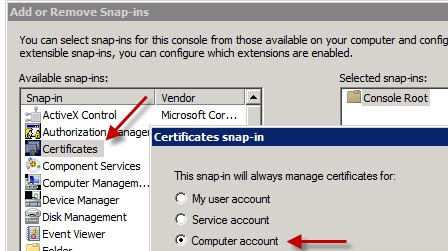
1. On what will be your new View Connection server open a blank MMC, add the Certificates snap-in, and manage certificates for your Computer Account.
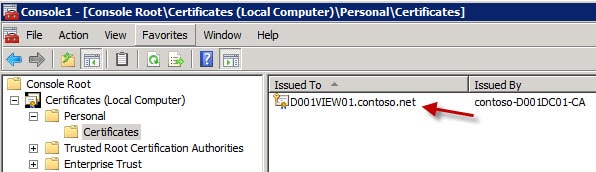
2. Open your personal certificates and review any existing certificates you may have. In this case I have Autoenroll configured, so the server automatically got a “computer” certificate installed. However, View Connection server can’t use this certificate if it was issued with all default settings, which prohibit exporting the private key.
If you try to use this certificate, the built-in web server will barf and you won’t get the login screen. The reason for this, is the default computer certificate template does not allow the private key to be exported, which View requires. So you could either alter the computer certificate request to allow private key export, or create a web server template (or request) with the allow private key export enabled.
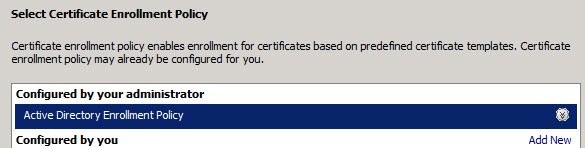
3. Right click in the right pane and select Request New Certificate. Click Next, and on the following screen if you have a Windows CA that is online and configured to issue computer certificates, you should see something similar to the following picture. Click Next.
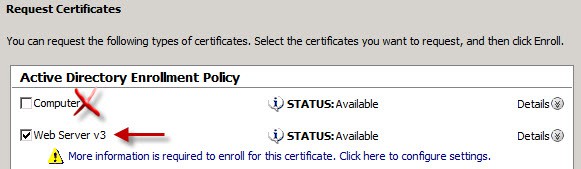
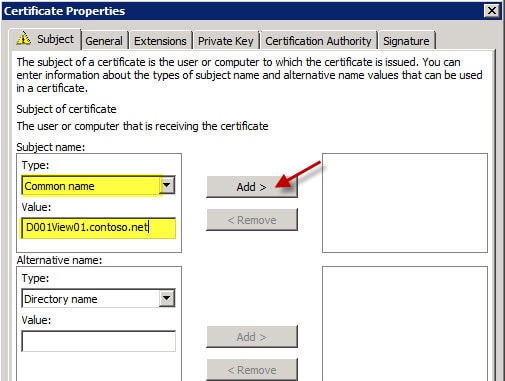
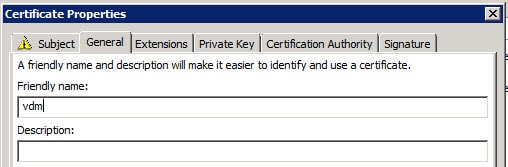
7. Click OK, then click on Enroll. If all goes well, you should now see a new certificate with a friendly name of vdm in your certificate store. Note that the intended purposes is only Server Authentication.

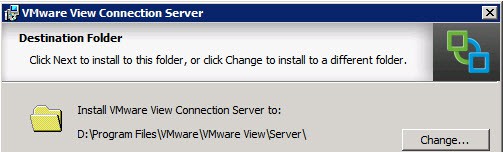
8. Start the VMware View Connection Server installation process, and modify the installation directory as you see fit. I always install software on the D: drive, as shown below.
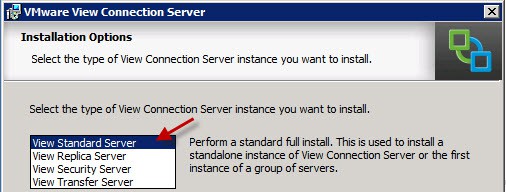
10. Enter a strong recovery password and optional password reminder.
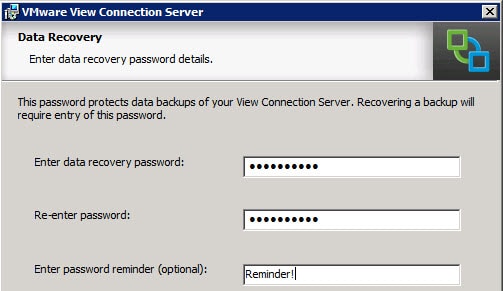
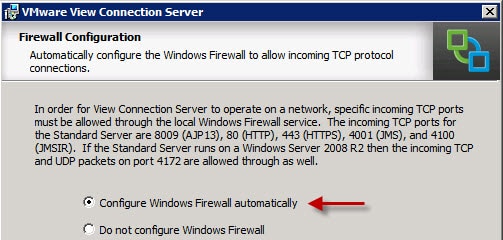
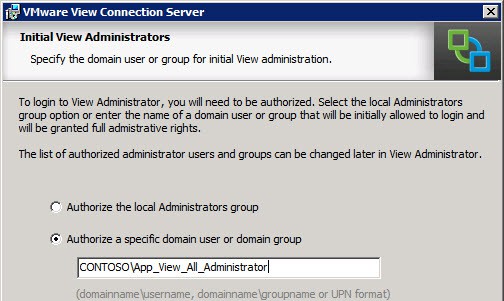
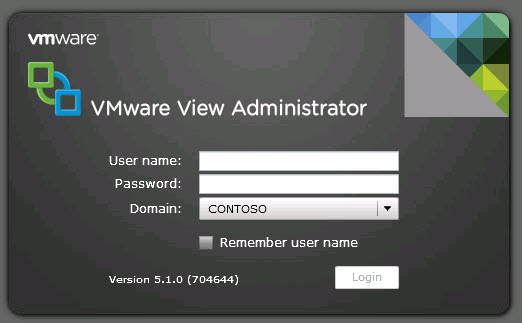
14. It is extremely unfortunate that the View console relies on Adobe Flash player, as it is riddled with nearly weekly critical security vulnerabilities. So you must install Flash player on whatever machine you want to access the View administrator console from. VMware really needs to update the interface to HTML5.
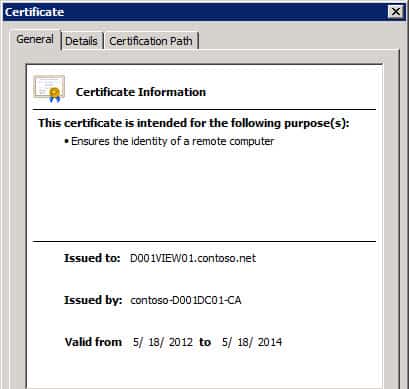





Thanks for the manual – but all my connection Servers are still shown in red -invalid- Server’s Certificate does not match the URL. The certificates are vaild in the IE with fqnd and short name – that can’t be the problem here.
Any ideas ?
From my experimentation, it seems that having a certificate with a SAN (subject alternate name) confuses View and sometimes IE. So I changed the instructions to only use the FQDN (no short name) and that fixed the red certificate issues in IE and View. For the View problem, I’d open a ticket with VMware to complain that certs with SANs cause a certificate error.
Thanks for your article Derek. You saved me a lot of hair pulling.
I’m working on a Teradici zero client with firmware 4.0 which seems to handle a View connection server certificate with a SAN.
I have just completed our View 5.1 Upgrade across all servers and security servers. I came across this post when trying to resolve the Red alarm on our security server. Once again certificate and everything works fine from the client perspective but the ‘alarm’ red -invalid- Server’s certificate cannot be checked.
I was able to resolve this error by allowing the Connection server that was paired with our security server reporting the red alarm access via HTTP through several firewalls to get to the Verisign CRL sites, so that it could correctly validate the purchased ssl certificate bound to the security server. Hope this helps someone else cause it really annoyed me too. Also a restart of VCS & VSS was required for it to recheck the CRL again after about 15 mins and again when a user connected via Security Server.
Anonymous:
I noticed in one environment when I included both the FQDN and the shortname, that IE and Connection Server were not happy with the cert, even though the hostnames were 100% correct. I re-issued the certificate with only the FQDN, and then the cert errors went away. So you might try a new cert w/o the shortname and see what that does for ya.
Alan:
Is the VMware Gateway service running? I bet not, since it doesn’t appear to be listening on 443. This points to a certificate problem. Does the certificate you are using have the ‘mark private key as exportable’ flag set? Have you looked in the VDM logs for any certificate based errors? If you see the error at the top of my post about invalid null data, that means the Java service can’t read the private key so it barfs.
I have managed to get the internal certificate working with your instructions regarding using a Windows2003 Template. This has been working fine for over a week. I have since purchased a Thawte SSL certificate and I am now back to square one for the security servers.
I did check the services and they are all running ok, the log file shows the error:
[u] The Secure Gateway Server is using SSL certificate store of type KeyVault
[KeyVaultKeyStore] No qualifying certificates in keystore
[KeyVaultKeyStore] No qualifying certificates in keystore
[u] The Secure Gateway Server is listening on https://*:443
[e] Smart Card/Certificate Authentication will not be used as not configured for SSL.
But 443 isn’t listening as before !
I noticed if I did put a short name in it failed on the internal certificate so was very careful not to do this on the external certificate.I did however use the friendly name on the CSR so am now thinking should I have done that.
Will keep you informed on my progress
Unknown: The computer policy did not work in the two environments that I tested it with. My computer template policy does not allow exporting of the private key, which View seems to require. I configured the web server template policy to allow private key export, and it works fine (doesn’t if private key export is disabled). I’ll try the computer template with private key export and see what that does.
Derek –
Not sure if you still edit this thing, but you may want to throw this in here:
If the connection server administration console wont connect via https, and you do a netstat -ano and don’t see it listening on 443, try this:
Open Windows Firewall with Adv. Security and look at the 1st rule. I used all the defaults listed here, and followed the admin guide to the “T”… maybe not so bright, but anyway. The first rule I had listed was a deny all, put there by View. Thanks. Yeah…
Anyway I hope this helps someone else, I spent a couple hours following rabbit holes before I decided to bust out the old A+ material… first 2 questions: Is it plugged in? Is it turned on? I wish I could meet the crackheads that design this vmware bullsh*t so I could give them the bird.
I have the similar issue to Alan Wright. I am using VMware View Connection Server (64-bit) 2012-05-16 | 5.1.0
I have tried to issue self-signed certificate. Then I had some certificate related issues with PCoIP, but View Administrator web page worked fine (only with info that View Conn. server certificate is untrusted).
I managed to make Microsoft CA and issue certificate with auto-enrolment. Everything is set properly, but I get this error message “[KeyVaultKeyStore] No qualifying certificates in keystore” in View Connection log file. That’s why my View Administrator (” [Processor] Connection Processor is exiting”) does not start at all.
So I tried the tip with creating and configuring locked.properties with exported .pfx file. When I set the locked.properties then the debug log file includes “[SslUtils] Could not decode certificate failure reason (Unknown in Unknown)”.
If anyone has some idea what to do next, I have spent a loot of hours with this issue.
By the way, I figured out how the certificate has to be generated manually using Windows tools and documented it here, specifically for Windows 2008 standalone servers, such as the View Security Server:
http://www.zerouptime.ch/2012/10/manually-generating-view-5-1-ssl-certificates/
Derek,
i use your info but when i connect to connect server it come up and login ok but the cert is error (Mismatched address
the security certificate presented by this website was issued for diffrent website’s address.) any advice please thanks
Hi Derek, I’m running in a problem with my Connection server 5.1.1
– Everything was working fine until I was called that clients cannot connect using the connection server.
– I tried to access my view administrator and is not opening, internet explorer cannot display the page.
– I logged remotely to the connection server and locally I tried to access the view administrator and still page cannot be displayed.
– I prepared a replication server and through it I was able to access the view administrator of the replication server.
– Using the IP address of the replica server I can connect to the virtual desktops, so temporary I have a solution but still I have to fix my primary connection server.
– I thought about reinstalling the connection server but there was a message saying “The installer will help you to remove VMware View Connection Server. to continue click remove. After removal, this program will no longer be available for use.”
– What do you think will happen if I continue, knowing I have my replica which is working fine do you think that will harm all my setting.
Thank you,
Great writeup! Didn't know they changed how they did SSL in 5.1, that threw me for a loop but a much better implementation of a SSL Certificate store!