This week Apple released Developer Beta 1 of their suite of ’27 operating systems. This means developers now have access to iOS 27, iPadOS 27, macOS 27, and more. One of the hundreds of enhancements and new features is very relevant to Home Assistant users. The Shortcuts app on the ’27 operating systems has been updated with a new automation action that can parse application notifications and run any series of Shortcuts actions you want. Let that sink in….
What does this mean? It means that you can now use Home Assistant to control any Apple devices that supports Shortcuts, such as your iPhone, iPad or Mac. The Shortcuts app is extremely powerful and can perform hundreds of actions. I’ve been dying for a way to trigger Apple Shortcuts from Home Assistant, and now that time is here!
Note: As of Developer Beta 1 of the ’27 family of operating systems the app notification title and message filtering is broken. This means current functionality is limited. However, I’ll walk you through the whole process and once Apple fixes the filtering bug, you can really go to town and create some amazing automations. I’m using the iPadOS 27 beta, but the same functionality should be available on iOS 27 and macOS 27 betas. Some steps may slightly differ on iOS 27 due to the slightly different screen layout.
Configuring the Shortcut
In this example I’m going to create an automation that turns on the Sleep focus mode when my iPad receives a notification from Home Assistant with a title of “sleep on”. This requires the Home Assistant mobile app is installed on your device. It’s available for iOS, iPadOS, and macOS.
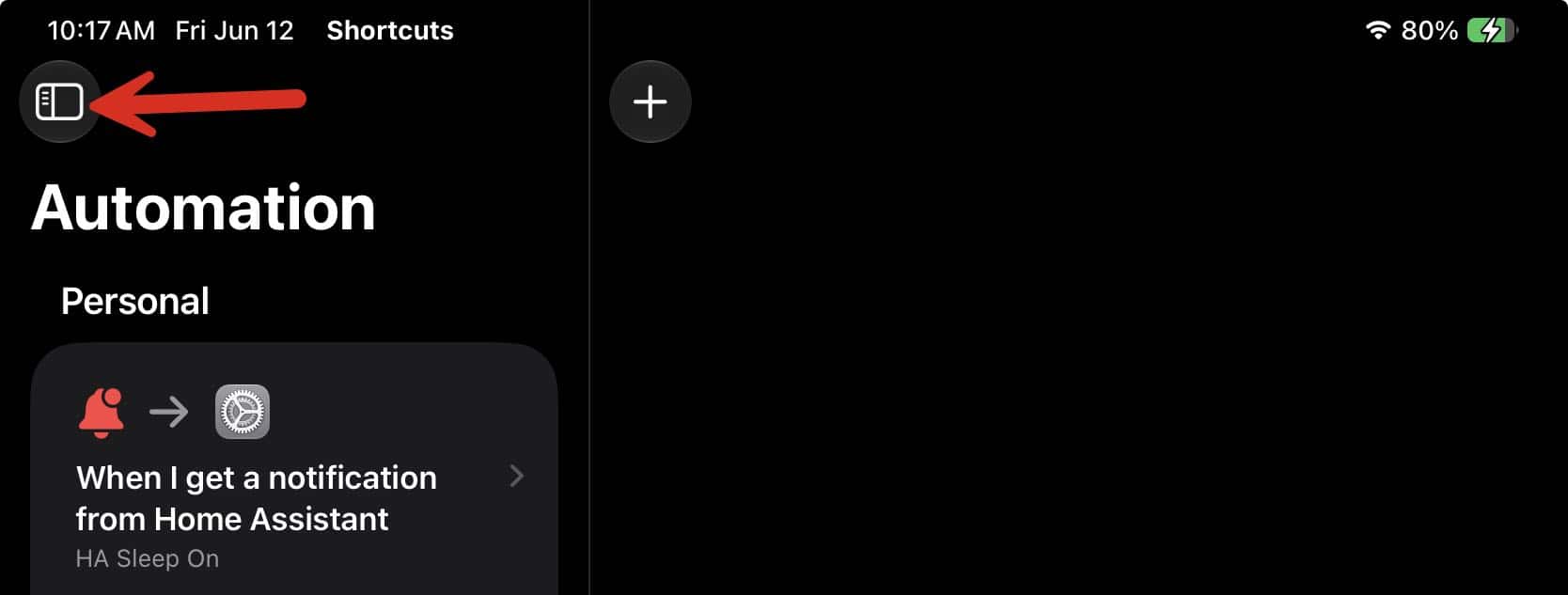
1. On your iOS 27 or iPadOS 27 device open the Shortcuts app. Go into the Automation section. On iPadOS 27 tap on the upper left button to reveal the menu flyout. Tap Automation. On iOS tap the Automation button at the bottom of the screen.
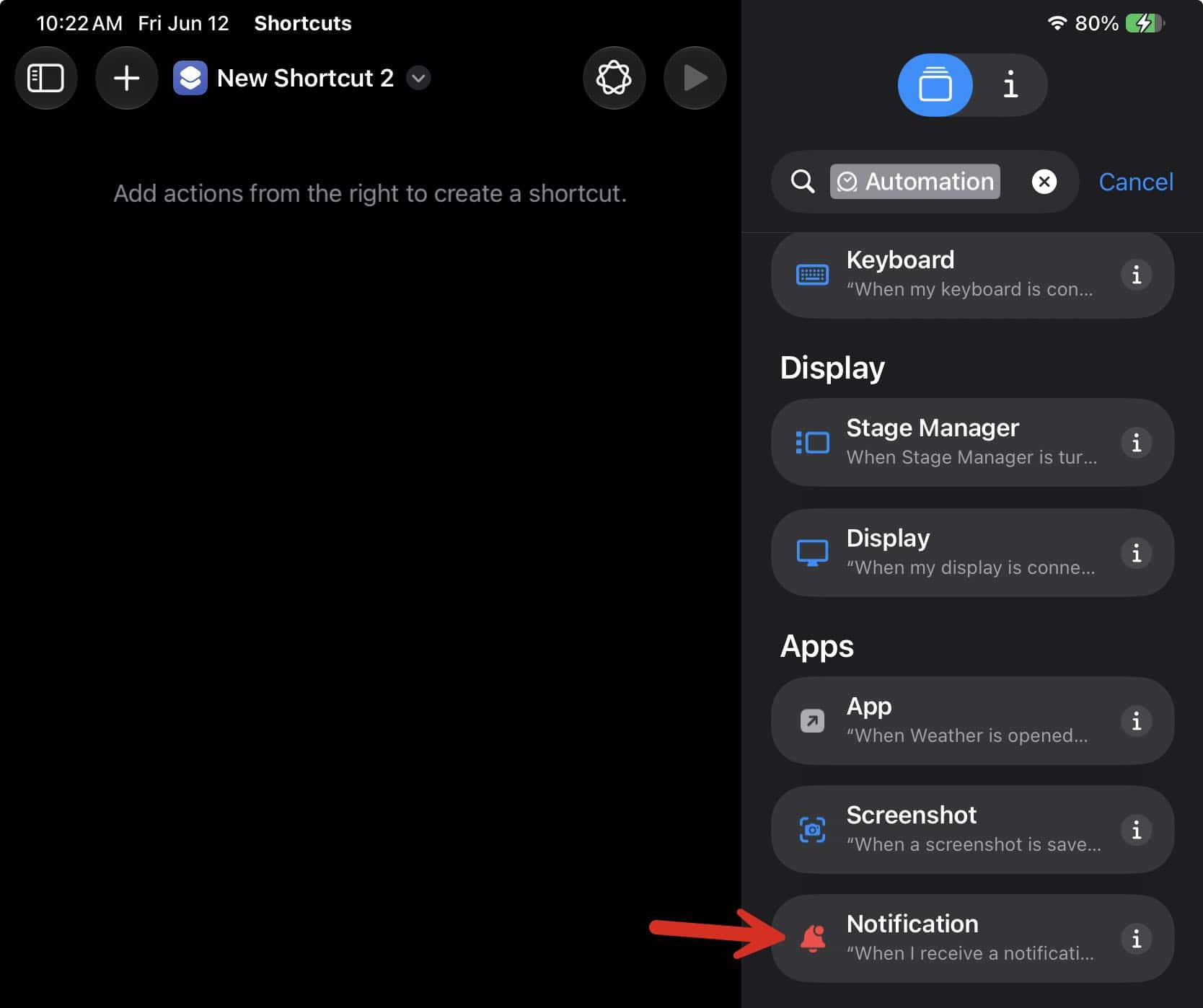
2. Tap the + symbol to start a new automation. Tap the hamburger icon in the upper right to reveal all of the actions. Tap Automation. Under Apps look for Notification.
3. When the Shortcut opens, tap the App field. Find the Home Assistant app and tap it.
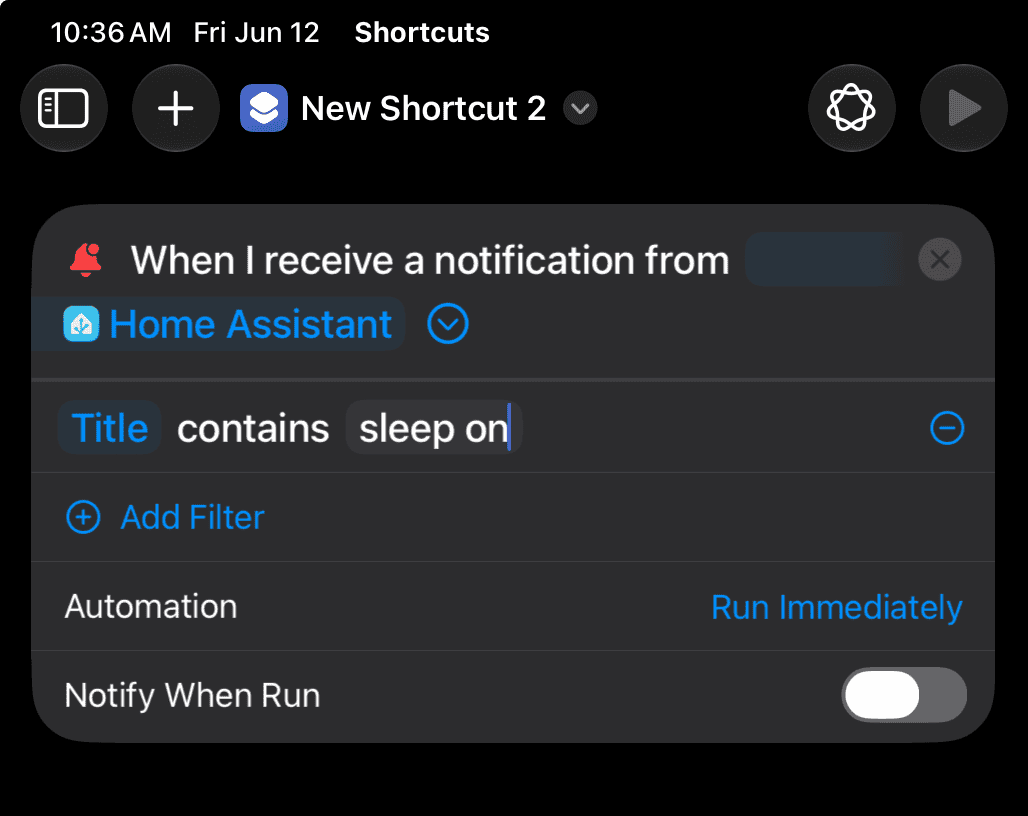
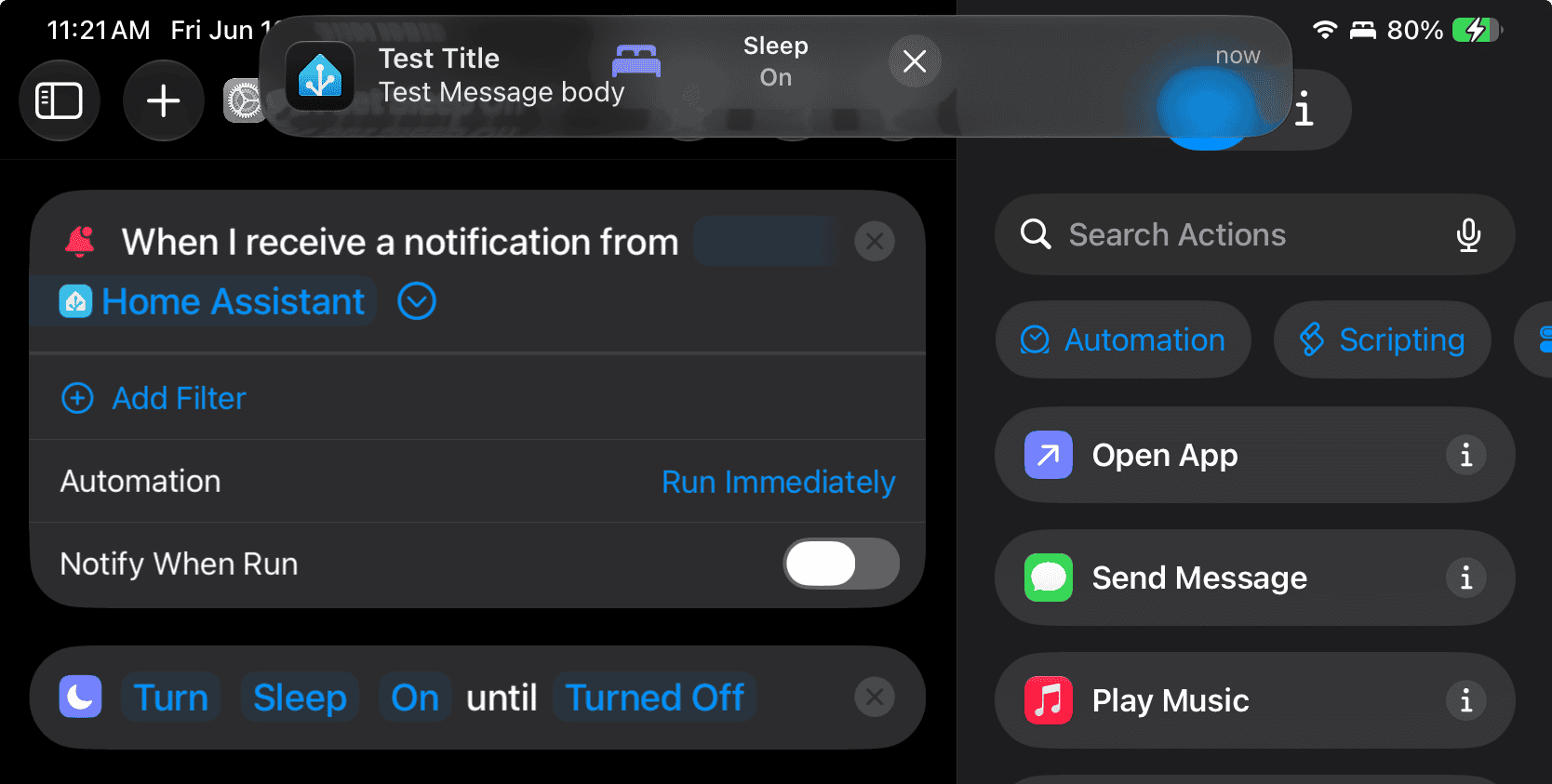
4. If you want to filter on the message Title or Message body, tap the arrow to the right of Home Assistant and tap Add Filter. Title should be the default. Tap Title if you want to change it to Message (body). Important: Filtering is broken on Developer Beta 1 of iOS 27 and iPadOS 27. For the automation to trigger you must not have ANY filter actions. This means we currently can’t perform different actions based on the contents of the notification. Apple should be fixing this in a future beta. The screenshot below is what should work in future betas once the filtering bug is fixed.
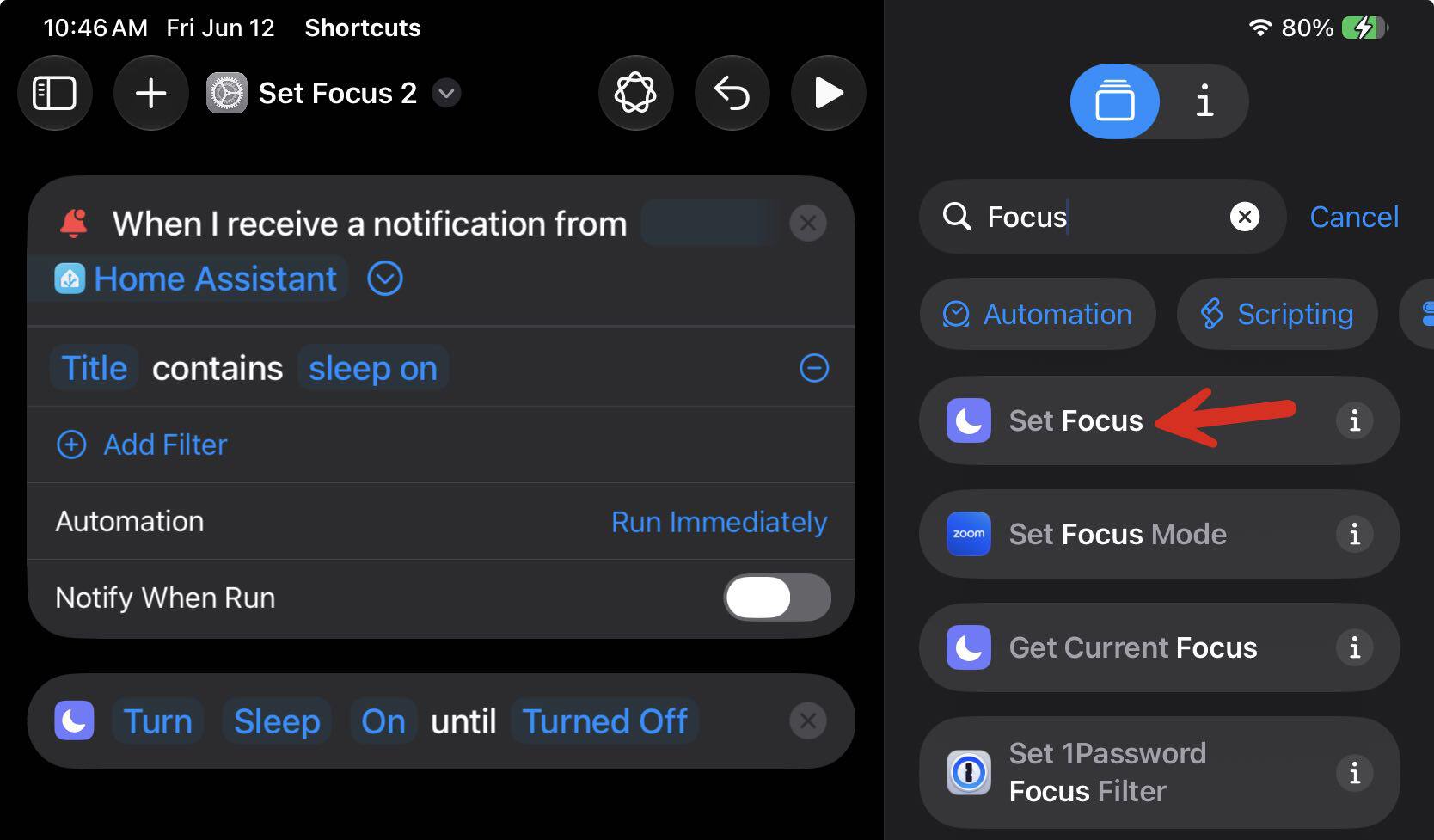
5. To have the Shortcut to change the focus mode, in the right action search pane type ‘focus’. Look for Set Focus and tap it to add the action to your shortcut.
6. Tap Do Not Disturb, tap Sleep, then tap Off. Your Shortcut should now look like the screenshot below (remember no Filter for Developer Beta 1).
7. At the top of the Shortcut tap the default name (Set Focus 2 in my case) and rename it to something more descriptive. You can also change the icon, if you wish.
Now you have a Shortcut automatically that will automatically trigger when the Home Assistant app receives a notification with the title of “sleep on” and will turn on the sleep focus mode.
Home Assistant Configuration
Let’s first do a quick and dirty test from Home Assistant to validate that the Shortcut automation works. I’m running Home Assistant 2026.06, which supports the “notify.” entity.
- Go into Home Assistant, then Settings, then Devices & services. Locate Mobile App.
- Find the Apple device you wish to send a notification to. Open the device and look for the Notifiers section. Click on the entity, then the configuration cog, and copy the entity ID.
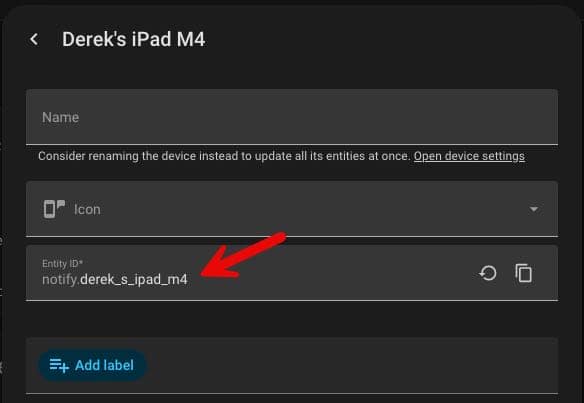
3. Go to Settings, then Developer tools, then Actions. Switch to YAML mode and paste the following, using your own entity ID:
					action: notify.send_message
target:
  entity_id: notify.derek_s_ipad_m4
data:
  message: "body: test message"
  title: sleep on
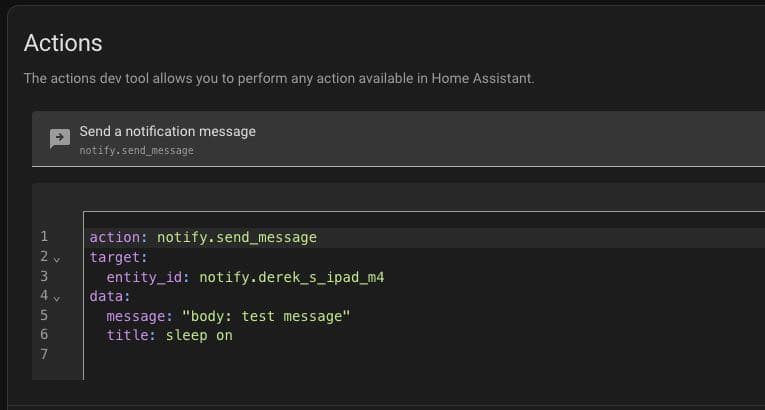
4. Click Perform action. On your device you should now see the incoming notification. The Shortcut should now trigger and turn on the Sleep focus mode.
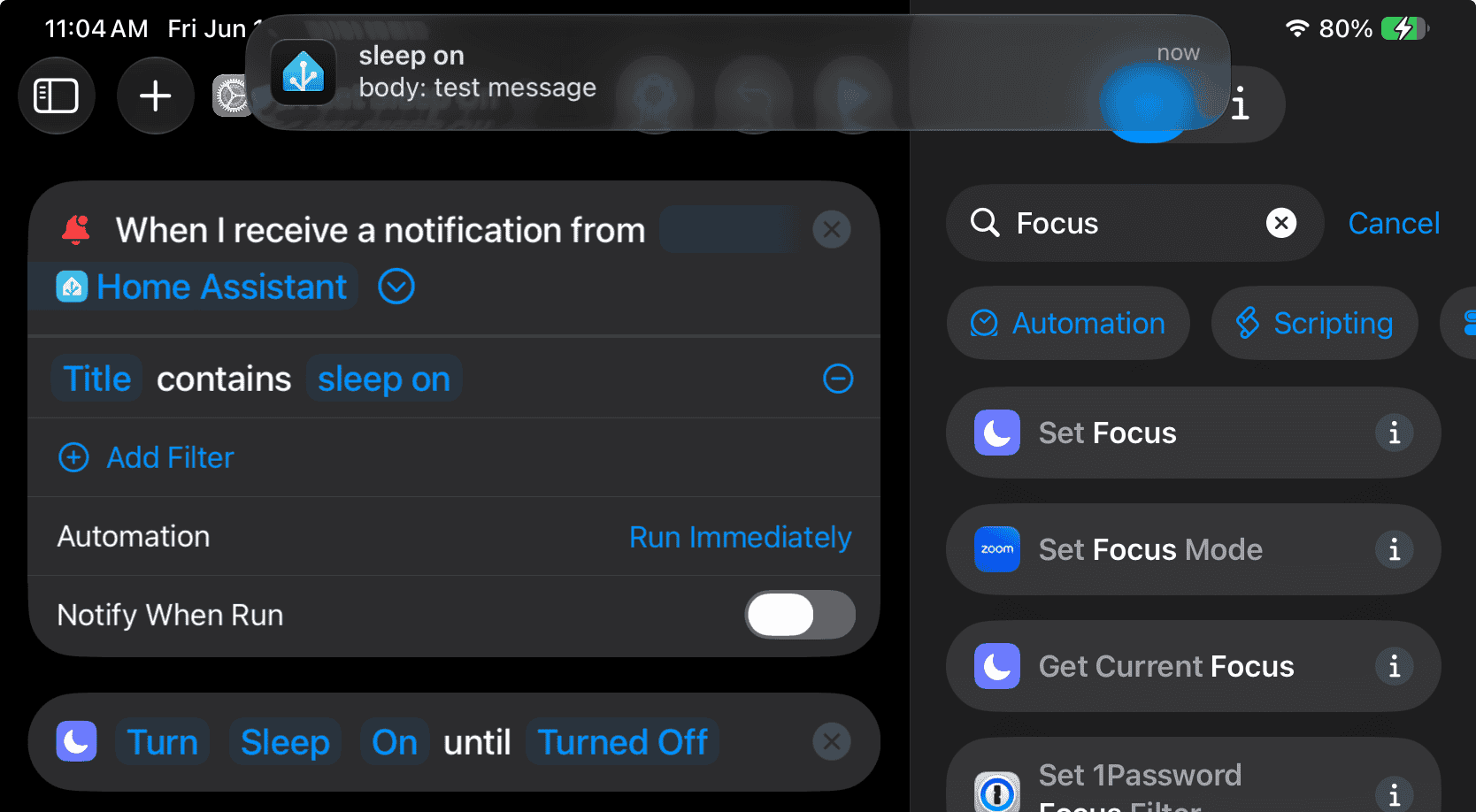
This is just a very simple example of what you can do the new application notifications in iPadOS/iOS/macOS 27. The sky is the limit on what you can do. You could even build complex standalone Shortcuts, then use the notifications trigger to run a specific Shortcut based on the notification title or message body. The automation will run even if the device is locked.
Advanced Notification Blueprint
The famous Blacky Home Assistant contributor has an amazing blueprint called State Notifications & Actions. This blueprint enables complex logic to be used for sending Home Assistant notifications to both iOS and Android devices. You can see his Home Assistant community post here, with a link to directly import the blueprint.
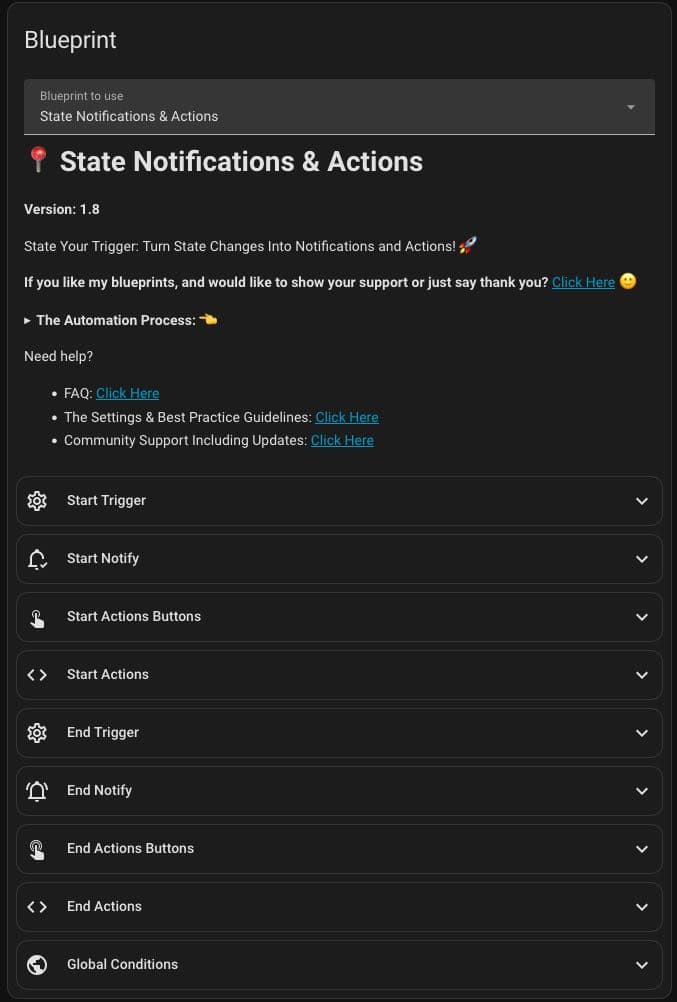
In the example below, in iPadOS 27 Developer Beta 1, you can see that I sent a notification from Home Assistant to my iPad, used no filters, and it triggered the automation to turn on the sleep focus mode using Blacky’s blueprint. The sample YAML is below.
					alias: State Notifications & Actions
description: ""
use_blueprint:
  path: Blackshome/state-notifications-and-actions.yaml
  input:
    start_notify_device:
      - 718eb2c33f5ddaab2ef766757607d8cb
    start_notify_interruption_level: active
    start_trigger_state: "on"
    start_trigger_state_entity:
      - light.monitor_light
    start_title: Test Title
    start_message: Test Message body
    include_start_notify: enable_start_notify_options
Control Home Assistant with Shortcuts?
How about doing the reverse, meaning controlling Home Assistant via Shortcuts? This has available for a while and I’ve been using this for years. There’s nothing new here for the ’27 OS family. However, if you weren’t aware this was possible, here’s a quick example.
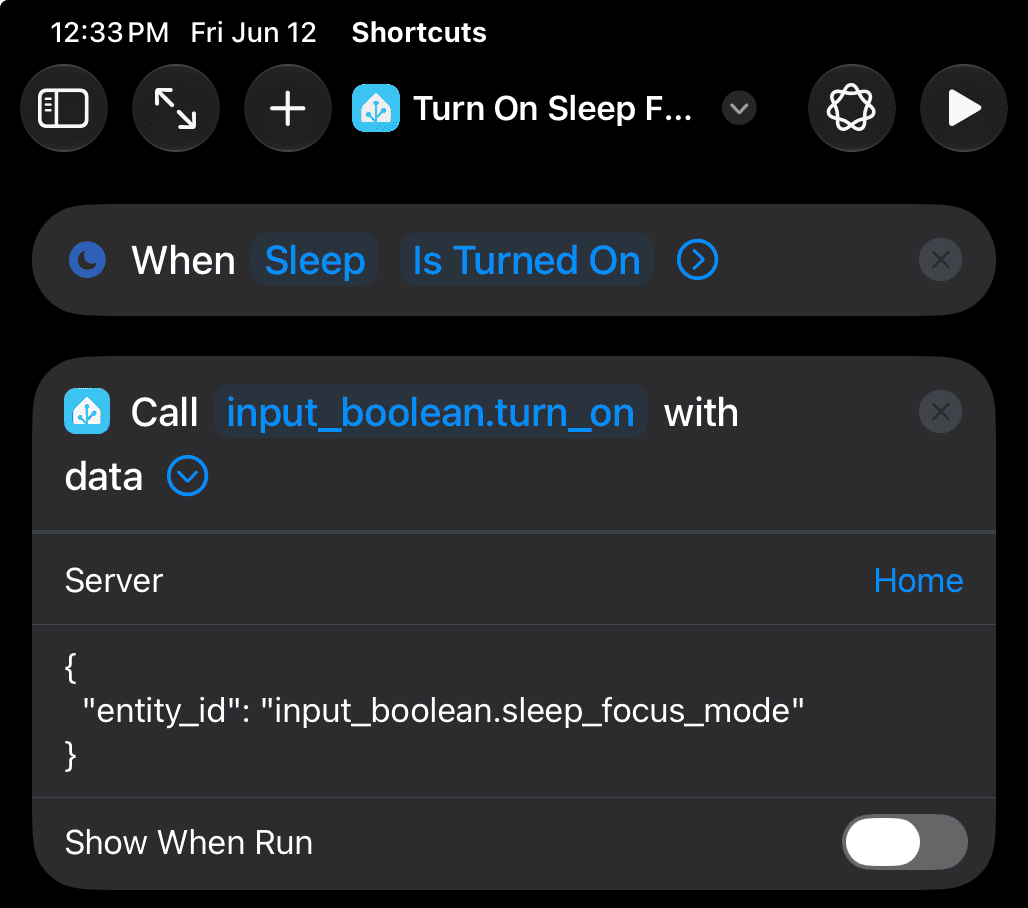
I built an iPadOS 26 Shortcut automation that triggers when the sleep focus mode is turned on. This will automatically run, and makes a call to Home Assistant to turn on an input boolean which indicates that I turned on the sleep focus mode. I have several automations that trigger when this boolean is turned on.
What else is possible?
Notifications can call Home Assistant Web Hooks
Another potential use case that is exciting is the using notifications from ANY other application to trigger Home Assistant actions via web hooks. Meaning, let’s say you have a legacy third party home security app on your phone that has zero smart home integration. But, that app has a native iOS notification system for events such as armed or disarmed. By leveraging the new iOS 27 app notification system along with the Home Assistant companion app web hooks, a shortcut could be triggered on the ‘armed’ state and make a web request to Home Assistant to set a boolean to indicate that the system is armed. Likewise for the disarmed state.
Or maybe you have a smart appliance that doesn’t integrate with Home Assistant but has a good iOS app with notifications. If you get a notification that your laundry is done, you could use a shortcut to make a web request to Home Assistant that makes a TTS notification on your smart speaker or flashes some lights.
In theory, any application that has a notification system can be used as a trigger for Home Assistant. That’s wild!
Control Applications via Home Assistant Notifications
Another exciting possibility that you could use Home Assistant push notifications to control any app on your iPhone, iPad or Mac that supports Shortcut actions. For example, let’s say your car has an app on your iPhone and it supports Shortcuts. One of the shortcut actions is to start the climate control. You could now push a Home Assistant notification to your iPhone that triggers a shortcut to call the action that starts the climate control on your car.
Learning more about Shortcuts
Stephen Robles is one of the most prolific Shortcuts creators on the planet. He has a shortcuts community entirely dedicated to sharing his shortcuts knowledge and how to make powerful shortcuts. Check out his Shortcuts community and his massive YouTube channel.
Summary
I’m very excited to see that Apple has added new Shortcut triggers in iOS 27, iPadOS 27 and macOS 27. You can now trigger actions based on an application’s notification title, subtitle, or message body. This means if you have the Home Assistant companion app installed on your Apple devices, you can now trigger actions based on Home Assistant notification content. The sky is really the limit on actions you can trigger on your favorite Apple device from Home Assistant.



This is an amazing article and I used some of your steps to create a shortcut that creates a reminder when my espresso machine runs low on water, needs cleaning, etc. based on Home Assistant notifications. This part works great and reminders are created without issue. Problem is I ran into a possible iOS bug or issue with creating a shortcut to ‘mark complete’ or ‘remove’ the reminder when those tasks were completed and HA sends a new/updated notification.
Basically, the shortcut to remove (or mark complete) the reminder does NOT work on any reminder that was created by the initial shortcut that created the reminder. If I create a manual reminder with the same title and run the shortcut (or trigger the notification) it deletes or marks complete without issue, every time. Unfortunately, it never finds and deletes the reminders created using the shortcut. Not sure what’s going on in the background because it clearly does work on manually created reminders with the same info/details. Almost like a weird permission thing where a reminder created by the shortcuts app can’t be modified by shortcuts. They can however be marked completed and deleted manually.
I’d be curious if you had any thoughts on this or is you think it might be an iOS bug.
Cheers!