Now that the iOS 27 and iPadOS 27 betas are out, I’ve been digging a bit into the Shortcuts enhancements for tracking focus mode changes. With previous versions of iOS and iPadOS it was quite difficult to track all the focus mode states and call Shortcut actions based on the focus mode state. However, with iOS 27 and iPadOS 27 it is possible to track all the focus mode states.
What changed in iOS 27 and iPadOS 27 that makes it easier to track focus mode changes? A few things:
- Global variables are now supported via “Store Content”, “Get Stored Content” and “Delete Stored Content“. No third party apps are needed.
- Sleep focus mode is now supported as a selectable focus mode automation trigger (see bug note below)
- Shortcuts can have multiple automation triggers
- Apple added “Otherwise if” logic to make If logic statements easier to follow
- iCloud Shortcut links can now include the automation triggers
Combining all of this together makes it possible to create a Shortcut to accurately track all focus mode state changes in real time. You can call Shortcut actions based on turn on, turn off of any focus mode. In this example I just use a place holder action (Show alert) to show you the state changes of the focus mode as they happen. Replace the Show alert action with whatever actions you want to trigger.
Beta Bug Note: Previous beta bugs have been fixed starting with developer beta 5. You can now create/modify a Shortcut automation trigger that uses the Sleep focus mode.
Why Track Focus Mode Changes?
Tracking which focus mode your iPhone is in can be very useful. For example, if you have a Home Assistant setup you can use the Shortcut to always keep Home Assistant up to date with the current focus mode of your iPhone. You can then trigger automations or do almost anything you want in Home Assistant. You can check out this post: Home Assistant: iOS Focus Mode Automations (2027 Edition)
Shortcut Architecture
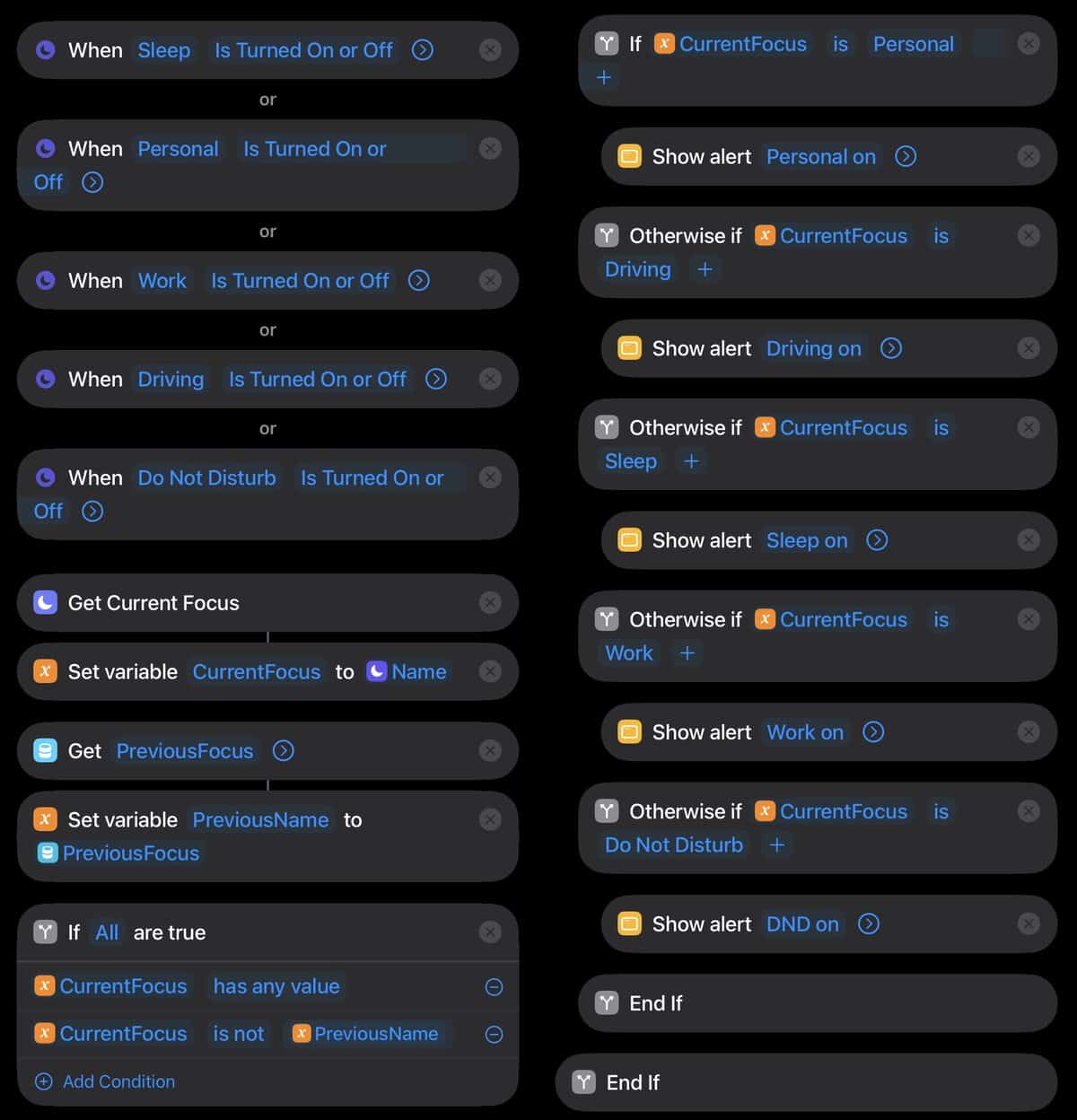
This shortcut monitors five iOS focus modes: Personal, Driving, Sleep, Work, and Do Not Disturb. It fires a distinct action when each is turned on or off. It uses the iOS 27 global stored content actions to persist state across automation runs, allowing it to compare the current focus mode against the previously active one and correctly detect both what just turned on and what just turned off, including during direct switches between focus modes.
Key behaviors:
- A direct switch from one focus to another (e.g. Work → Personal) fires both an ON action for the new focus and an OFF action for the old one in the same run
- Redundant re-triggers of the same focus state produce no output
- Back-to-back toggles of the same focus mode (on/off/on) fire correctly every time
- Cold starts and stale re-triggers are handled safely with no false alerts
					── TRIGGERS ──
When Sleep           Is Turned On or Off
When Personal        Is Turned On or Off
When Work            Is Turned On or Off
When Driving         Is Turned On or Off
When Do Not Disturb  Is Turned On or Off

── READ CURRENT STATE ──
1. Get Current Focus
2. Set Variable  CurrentFocus = Name (of Current Focus)
   (empty when no focus active)

── READ PREVIOUS STATE ──
3. Get Stored Content   PreviousFocus   [Global Value: ON]
4. Set Variable  PreviousName = PreviousFocus
   (empty when nothing stored)

── ON DETECTION ── (guard once, then route by current name)
5. If All are true:
       CurrentFocus  has any value
       CurrentFocus  is not  PreviousName
6.     If  CurrentFocus is "Personal"
7.         ▸ SLOT 1 — Show alert: "Personal on"
8.     Otherwise If  CurrentFocus is "Driving"
9.         ▸ SLOT 2 — Show alert: "Driving on"
10.    Otherwise If  CurrentFocus is "Sleep"
11.        ▸ SLOT 3 — Show alert: "Sleep on"
12.    Otherwise If  CurrentFocus is "Work"
13.        ▸ SLOT 4 — Show alert: "Work on"
14.    Otherwise If  CurrentFocus is "Do Not Disturb"
15.        ▸ SLOT 5 — Show alert: "DND on"
16.    End If
17. End If

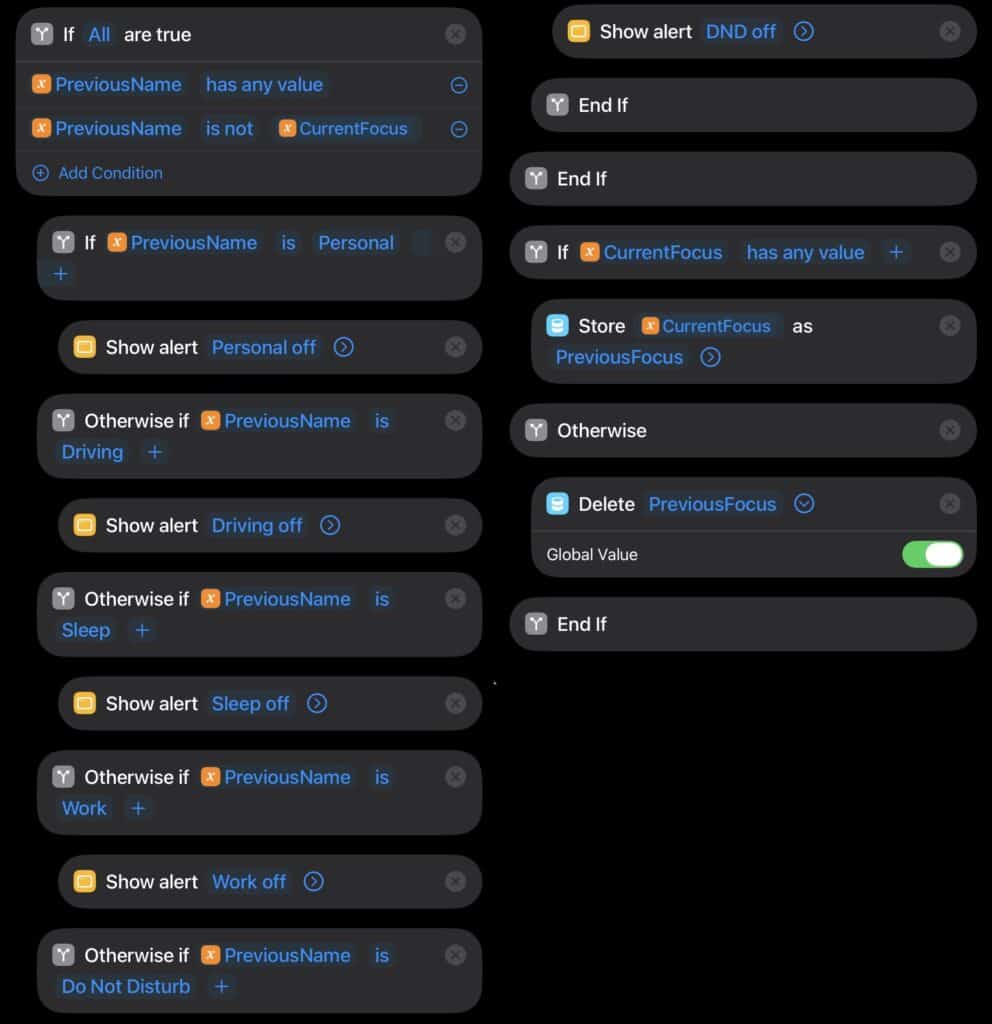
── OFF DETECTION ── (guard once, then route by previous name)
18. If All are true:
        PreviousName  has any value
        PreviousName  is not  CurrentFocus
19.    If  PreviousName is "Personal"
20.        ▸ SLOT 1 — Show alert: "Personal off"
21.    Otherwise If  PreviousName is "Driving"
22.        ▸ SLOT 2 — Show alert: "Driving off"
23.    Otherwise If  PreviousName is "Sleep"
24.        ▸ SLOT 3 — Show alert: "Sleep off"
25.    Otherwise If  PreviousName is "Work"
26.        ▸ SLOT 4 — Show alert: "Work off"
27.    Otherwise If  PreviousName is "Do Not Disturb"
28.        ▸ SLOT 5 — Show alert: "DND off"
29.    End If
30. End If

── PERSIST FOR NEXT RUN ──
31. If  CurrentFocus has any value
32.     Store Content  CurrentFocus  as  PreviousFocus   [Global Value: ON]
33. Otherwise
34.     Delete Stored Content  PreviousFocus             [Global Value: ON]
35. End If
The screenshots below show the full Shortcuts automation. If you want to download the shortcut from iCloud, click here. Please note that you will need iOS 27 or iPadOS 27 to use this shortcut.
Personal Automations
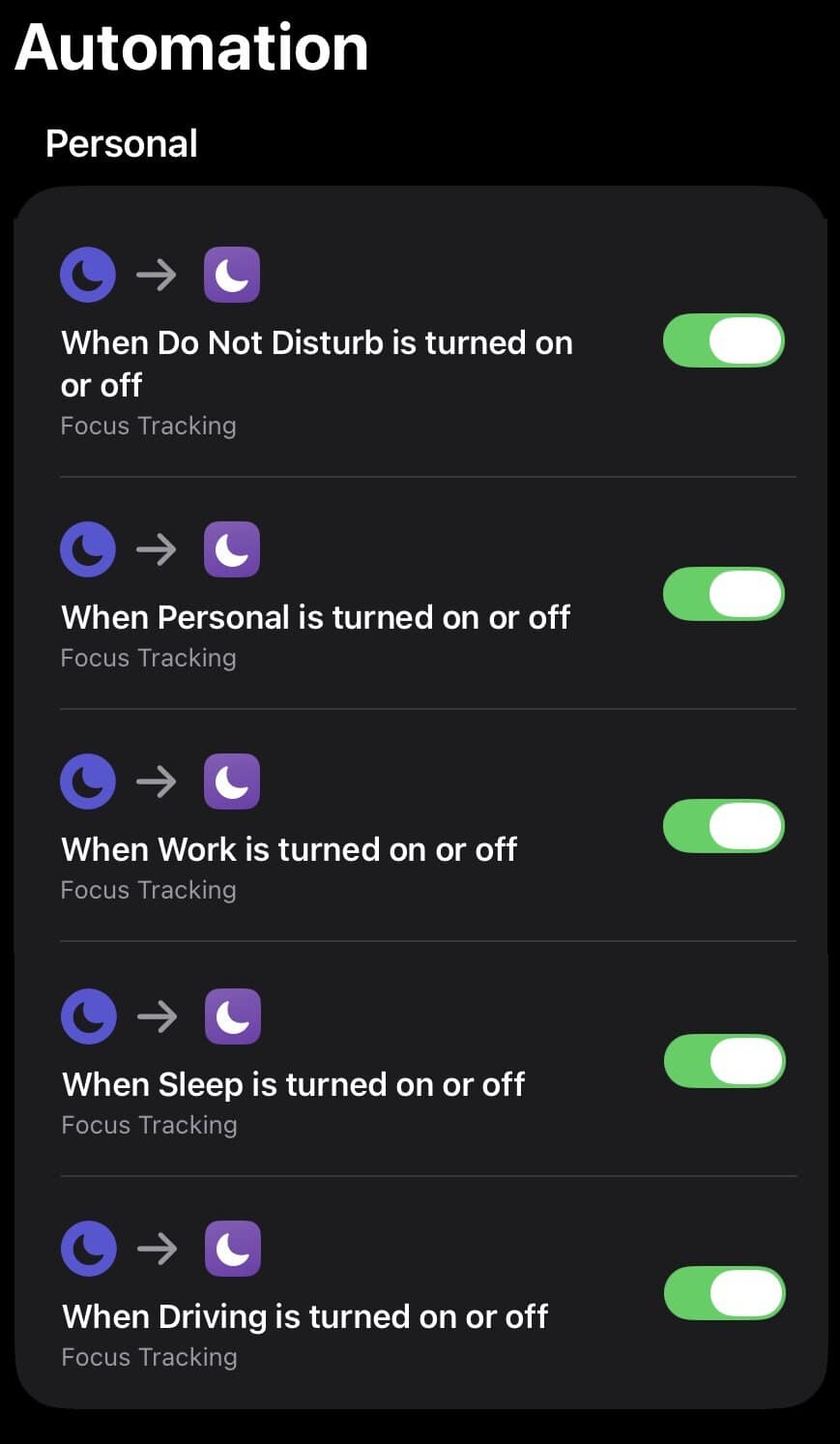
When you import this Shortcut from iCloud it will create five new personal automation triggers, one for each focus mode. If you want you can disable the focus mode automation triggers that you don’t want to use. To avoid confusion, make sure the automations are only enabled on one device.
Summary
Apple has made significant improvements to Shortcuts in iOS 27 and iPadOS 27. Combing several of the new features you can now have perfect focus mode tracking. This can be used for a number of things, but one popular use case is to trigger Home Assistant automations based on focus mode changes.





Dude! You’re killing it with these 2 last posts. Super helpful. I just realized with this one that I can handoff the “Home Assistant Focus mode” action to my always on Macmini instead of my iPhone. Since the focus state is shared, why not let the Mac do it? I host HAOS in VM Ware on the Mac anyway. Per my comment on the other article. You were right about the depreciated write text helper action in Shortcuts. The good news is, the functionality is still there it’s now “Perform Action” and select action “Set input text value”.
My text input helper is called input_text.focus_mode_m so my shortcut is:
Set Home Assistant Focus
1. Get Current Focus
2. Text
focus_mode_m
3. Dictionary
┌────────────┬──────┬─────────────────────────┐
│ Key │ Type │ Value │
├────────────┼──────┼─────────────────────────┤
│ entity_id │ Text │ input_text.[Text] │
│ value │ Text │ [Current Focus] │
└────────────┴──────┴─────────────────────────┘
4. Home Assistant → Perform action
Server: Server Name Redacted
Action: Set input text value
Input: [Dictionary]
I’m downloading your shortcut (thank you!) and will add a “run shortcut” and call that one for each focus
Yes, I actually re-wrote Home Assistant dedicated post three times in the past week to make it better. The currently posted version does exactly what you said…calls “perform action”. May need to force a browser hard cache purge on that post to get the latest version.
I’m glad I stumbled across your blog – I’m not usually quick to jump on a public beta, but these posts have made me eager to give it a try. I thought it would be safer to put a beta on my iPad than my iPhone, so I’m still in a half & half world, with iPadOS 27 Public Beta installed, but IOS 26.5 on my iPhone.
I am happy to see that all Focus modes (including sleep Focus) are available as triggers. As a minor quibble, I do wish that Apple would have implemented this as one personal automation, rather than creating a separate automation for each focus mode. ( Seems like they could make the trigger watch for ANY change to the focus mode….)
A possible suggestion for a cleaner implementation within Home Assistant might be to utilize a drop-down helper that contains your IOS Focus modes. I have already created this in my setup, and then created a Shortcut automation that pushes an update to that dropdown helper anytime one of my iOS Focus modes changes. Shortcut: https://www.icloud.com/shortcuts/3922e5376a6a4b7dbdf97f3b70206dcd
I’ve also been playing with the AI help for creating Shortcuts. I consider myself to be relatively proficient, but there remained one or two Shortcuts that I just couldn’t get to work before IOS 27. With just a few tries (lack of clarity on my part), the AI assist created a long-wished-for resulting Shortcut that works perfectly.
Thanks again for your blog posts. Not only has it allowed me to play around with these improvements sooner, but it sparked a few ideas that may not have occurred to me for awhile, even after the official release came out.