If you are a Home Assistant user and would like to trigger Home Assistant automations based on iOS or iPadOS focus mode changes, this post is for you. I walk you through a Sleep focus mode example, but the concepts are the same for any focus mode. I’ve completely revamped the content for iOS 27 and iPadOS 27, the latest version of the Home Assistant companion app, and the new Home Assistant automation engine.
This post is focused on iOS 27 and iPadOS 27. The “Simple” option I cover should work for iOS 26, with the exception of the Sleep focus mode. The “Combined” option is only for iOS 27 and iPadOS 27, as it uses brand new Shortcuts features. With iOS 27 iCloud Shortcut links can now include the automation trigger, which is great. So if you are using iOS 27 just use my iCloud Shortcut links and you can be up and running in minutes.
Update August 10, 2026: As of iOS 27 Developer Beta 5, Apple has added the Sleep focus mode to the list of focus modes for automation triggers. This now means that ALL focus modes can be used to trigger automations.
Update July 19, 2026: I broke this post up into two parts. The first one uses a single Home Assistant helper entity per focus mode. The second one uses a single input text Home Assistant helper entity to store the current focus mode name and the current state. Both methods work, so pick the one that works best for you.
Automation Architecture
In this post I’m using Apple Shortcut automation triggers to change a Home Assistant helper state to reflect the current focus mode state. Then within Home Assistant you can use this helper to trigger any automation you want. This keeps the configuration complexity limited to Home Assistant and all iOS does is tell Home Assistant the current focus mode state.
The Home Assistant companion app can be used to run automations and do a lot of other things directly in Home Assistant from your iPhone. However, IMHO, this can lead to confusion and could lead to a more fragile setup.
There are two times that my sleep focus mode state change is triggered:
- Bedtime: I just swipe to control center and turn on the Sleep focus mode. A Shortcut automation trigger recognizes the Sleep focus mode is turned on and makes a call to Home Assistant set the appropriate helper state.
- Morning: On days with an alarm, the alarm automatically turns off the Sleep focus mode which then triggers the same Shortcut automation that changes the state of the Home Assistant helper to indicate Sleep focus mode is now off. For days without an alarm I have a second Shortcut, covered below, which is triggered by taking my iPhone off of my bedside charger.
Morning Focus Mode Automation
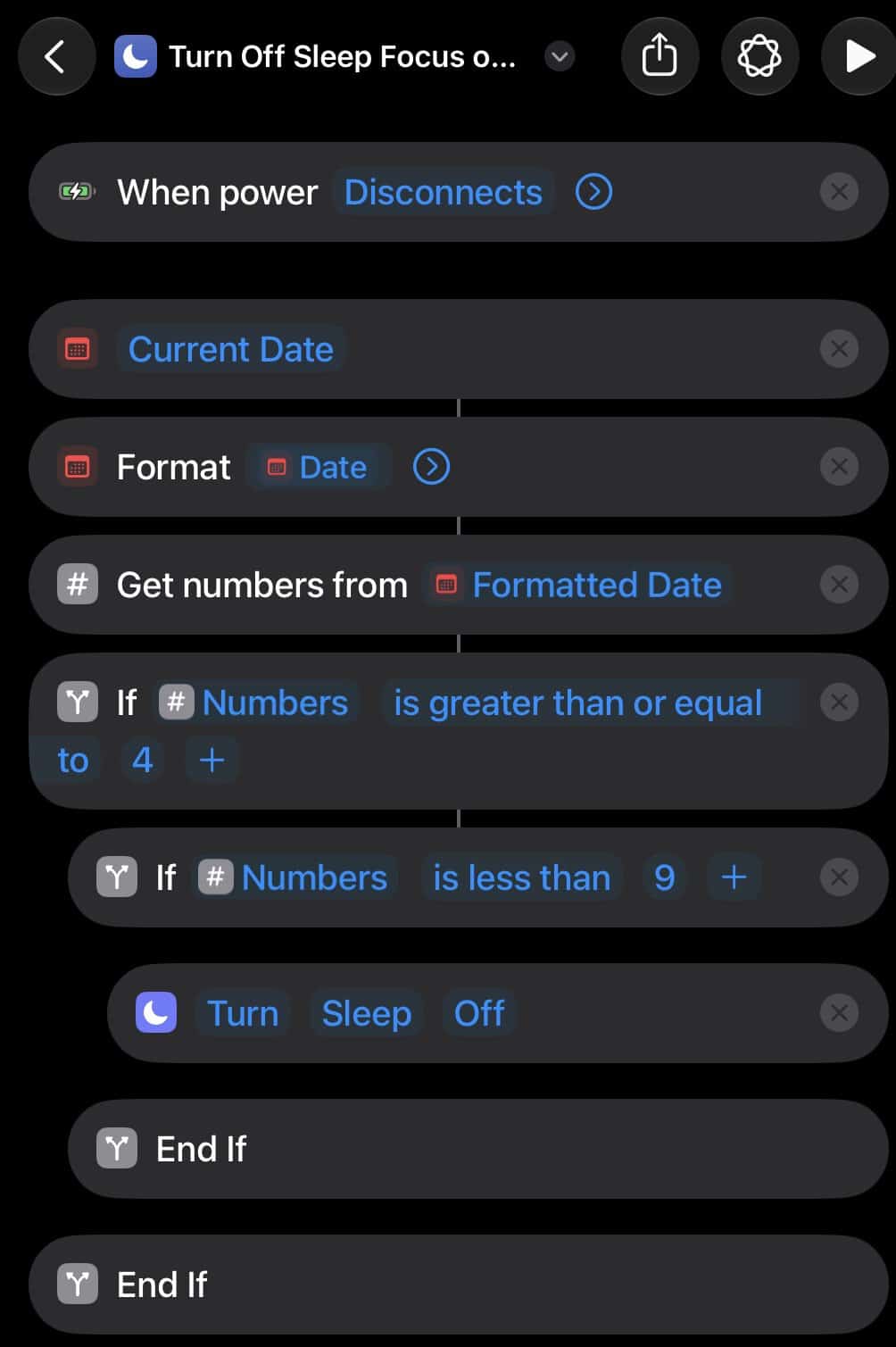
When the wakeup alarm goes off iOS automatically turns off the Sleep focus mode. However, for days without an alarm set I have a second Shortcut automation. If it’s between 4am and 9am, sleep focus mode is on, and the power is disconnected (phone is taken off my bedside charger), then turn Sleep focus mode off. This triggers the previously mentioned Shortcut automation which makes a call to Home Assistant to change the state of the sleep focus mode helper to off.
Download this iOS 27 Shortcut from iCloud click here. This link will include the automation trigger of power disconnect.
BTW, I used the new iPadOS 27 Shortcuts app to create this just by using a natural language prompt. This was the second version of the Shortcut, which is a bit more optimized. This is the exact Siri AI input I used:
Trigger on power disconnect. Then get the current local time (24 hour format), and if it’s between 4am and 9am, then turn the sleep focus mode off.
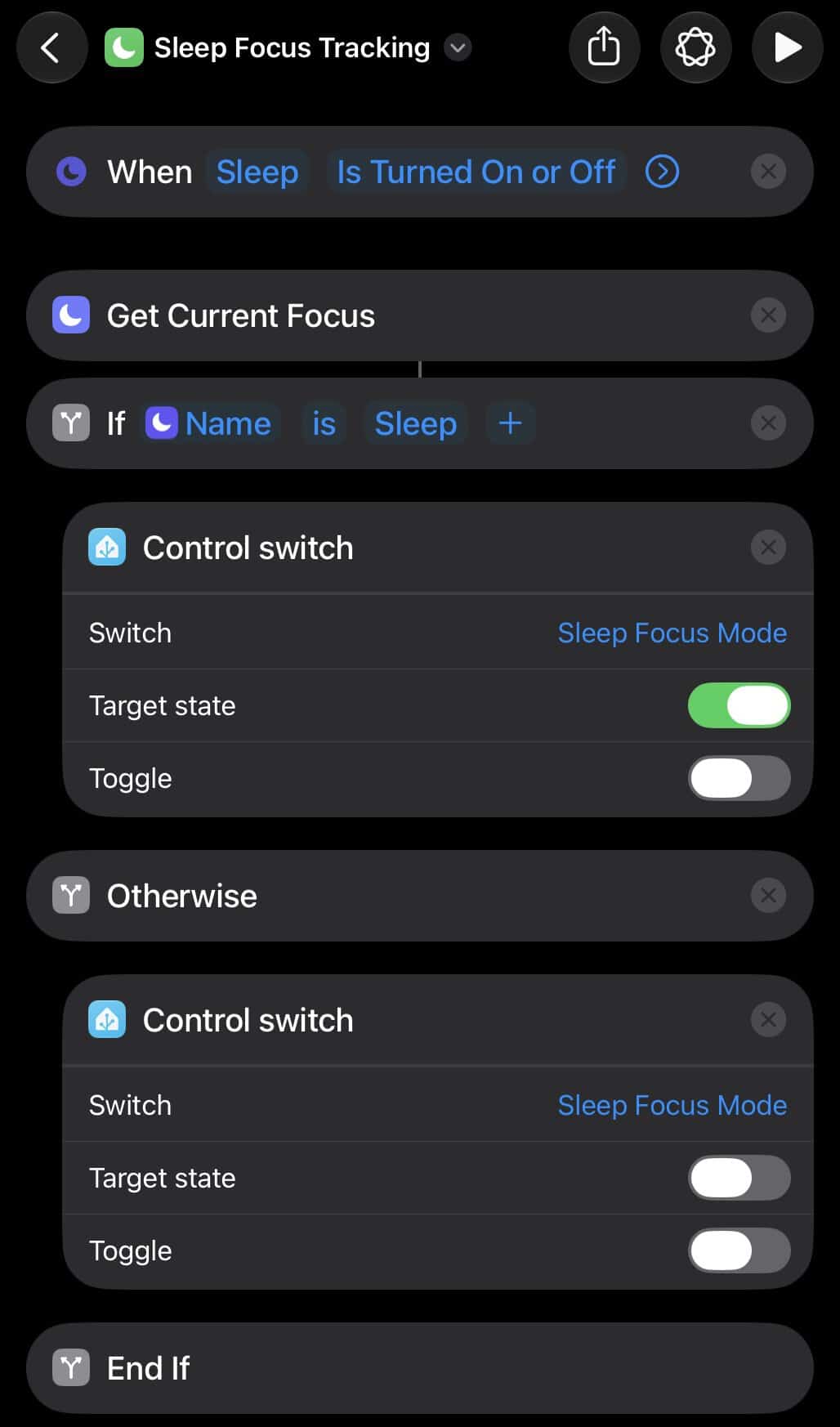
Focus Mode Automation - Simple
This is a Shortcut automation that will track the on/off state of the sleep focus mode. The Shortcut calls the Home Assistant action “Control switch” to set the on/off state of the sleep focus boolean helper accordingly. You can download the iOS 27 Shortcut from iCloud here. This can be easily adapted to track any focus mode.
This simplified approach to managing focus mode in Home Assistant involves creating a dedicated boolean helper for each focus mode you want to track. Although I focus on the sleep focus mode in this post, the same triggers can be used any iOS focus mode.
If you want to trigger Home Assistant automations based on more than one focus mode, just create more helper entities, one per focus mode and name them accordingly. You will also need separate Shortcut automations for each focus mode (covered below).
The first step is to create Home Assistant helper entity (input_boolean) that will track the state of the sleep focus mode (or any focus mode). Then within Home Assistant you can use this boolean helper to trigger automations.
- In Home Assistant go to Settings -> Devices & services -> Helpers. Select CREATE HELPER.
- Select the Toggle option. Give the Toggle a name (e.g. Sleep Focus Mode) and pick an icon. Click CREATE.

If you want to track more than one focus mode, just duplicate the automation, change the name, the focus mode name and the boolean helper name.
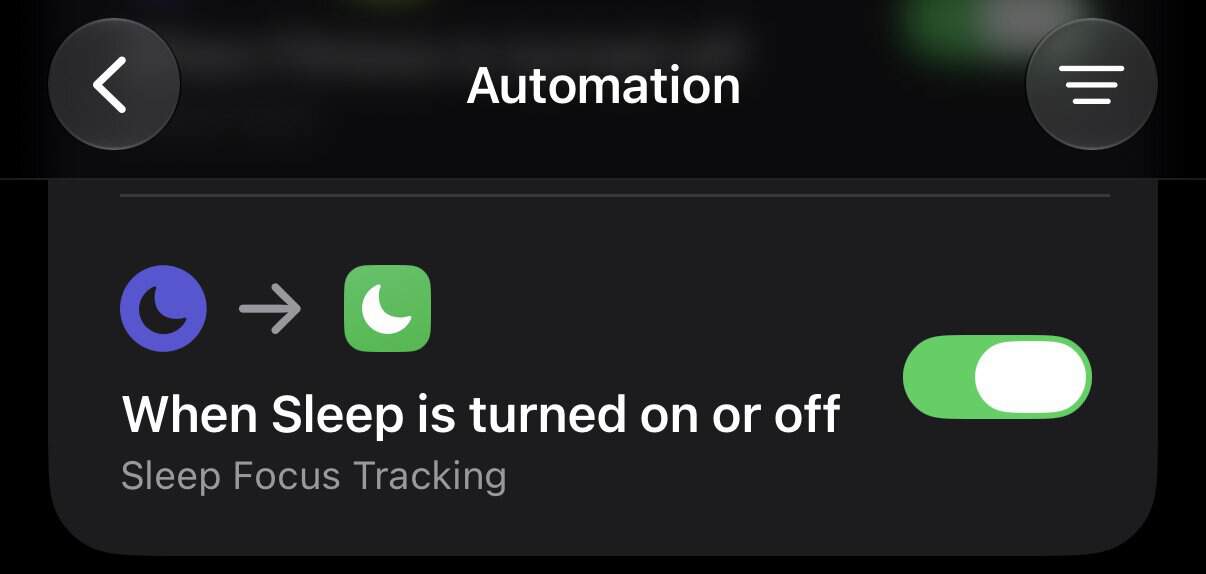
One you create or import the automation, make sure it’s enabled and listed under the “Automation” section in the Shortcuts app.
To test the Shortcut just enable or disable the sleep focus mode and make sure the Home Assistant boolean helper state changes accordingly. It should be nearly instantaneous.
Home Assistant Automation - Simple
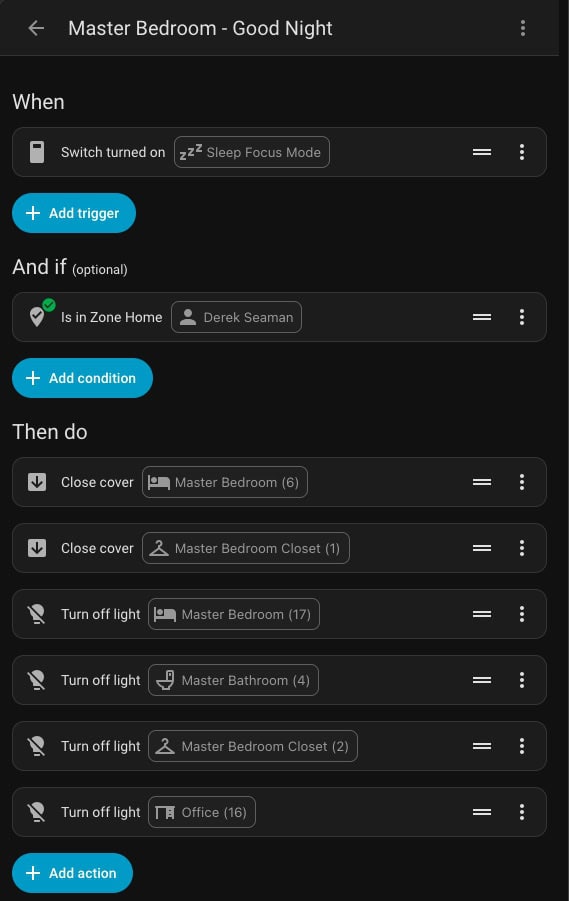
Now that all of the basic configuration is complete we can now turn to Home Assistant automations. The sky is the limit here, so I’m just showing you one example of what you can do. I’ve included the YAML, which can be fully edited in the visual editor. Just create a new automation, switch to YAML view and paste the code. Switch back to the Visual mode and change the entities as needed.
Using the new 2026.7 Home Assistant automation interface I created an automation called “Master Bedroom – Good Night” which is triggered by the sleep focus mode boolean entity turning on. It also checks that I’m actually home, by making sure my person entity is in the “Home” zone. I then have it turn off all of the lights in the master bedroom, master bathroom, closet, and close the blinds. You could also build a scene and just call the scene.
					alias: Master Bedroom - Good Night
description: ""
triggers:
  - trigger: switch.turned_on
    target:
      entity_id: input_boolean.sleep_focus_mode
    options:
      for: "00:00:00"
conditions:
  - condition: zone.in_zone
    target:
      entity_id: person.derek_seaman
    options:
      for: "00:00:00"
      zone: zone.home
    alias: Is in Zone Home
actions:
  - action: cover.close_cover
    metadata: {}
    target:
      area_id: master_bedroom
    data: {}
  - action: cover.close_cover
    metadata: {}
    target:
      area_id: mb_closet
    data: {}
  - action: light.turn_off
    metadata: {}
    target:
      area_id: master_bedroom
    data: {}
  - action: light.turn_off
    metadata: {}
    target:
      area_id: master_bathroom
    data: {}
  - action: light.turn_off
    metadata: {}
    target:
      area_id: mb_closet
    data: {}
  - action: light.turn_off
    metadata: {}
    target:
      area_id: office
    data: {}
mode: single
Focus Mode Automation - Combined
This combined approach uses a single text input entity to track the state of all your focus modes. For example, the text value of the entity is set to “sleep on” when the Sleep focus mode is turned on and “sleep off” when it’s turned off. It can also hold the state of any other focus modes, such as “personal on” or “personal off”. The advantage of this approach is that you can use a single Home Assistant helper entity.
I’ve developed a single Shortcut automation that triggers on all of the built-in focus modes. It uses thoughtful logic to determine which focus mode is on and which is off. This Shortcut will only work on iOS 27 and iPadOS 27. I wrote a whole post about, which you can check out here: Perfect Shortcut Focus Mode Tracking for iOS 27 and iPadOS 27
The first step is to create Home Assistant helper entity (input_text) that will track the state of all focus modes:
- In Home Assistant go to Settings -> Devices & services -> Helpers. Select CREATE HELPER.
- Select the Text option. Give the entity a name (e.g. Focus Mode) and pick an icon. Click CREATE.

Focus Mode Automation Shortcut
This complex Shortcut will track the state of all the default iOS focus modes. You can download the Shortcut from iCloud here (iOS 27 only). It can be easily adapted to track the state of any custom focus modes, just by adding the proper IF statements. If you don’t want all the focus mode states to be tracked, you can easily disable one or more focus modes automations in the Shortcut app. This lets you preserve the Shortcut configuration, but not trigger on unwanted focus mode state changes.
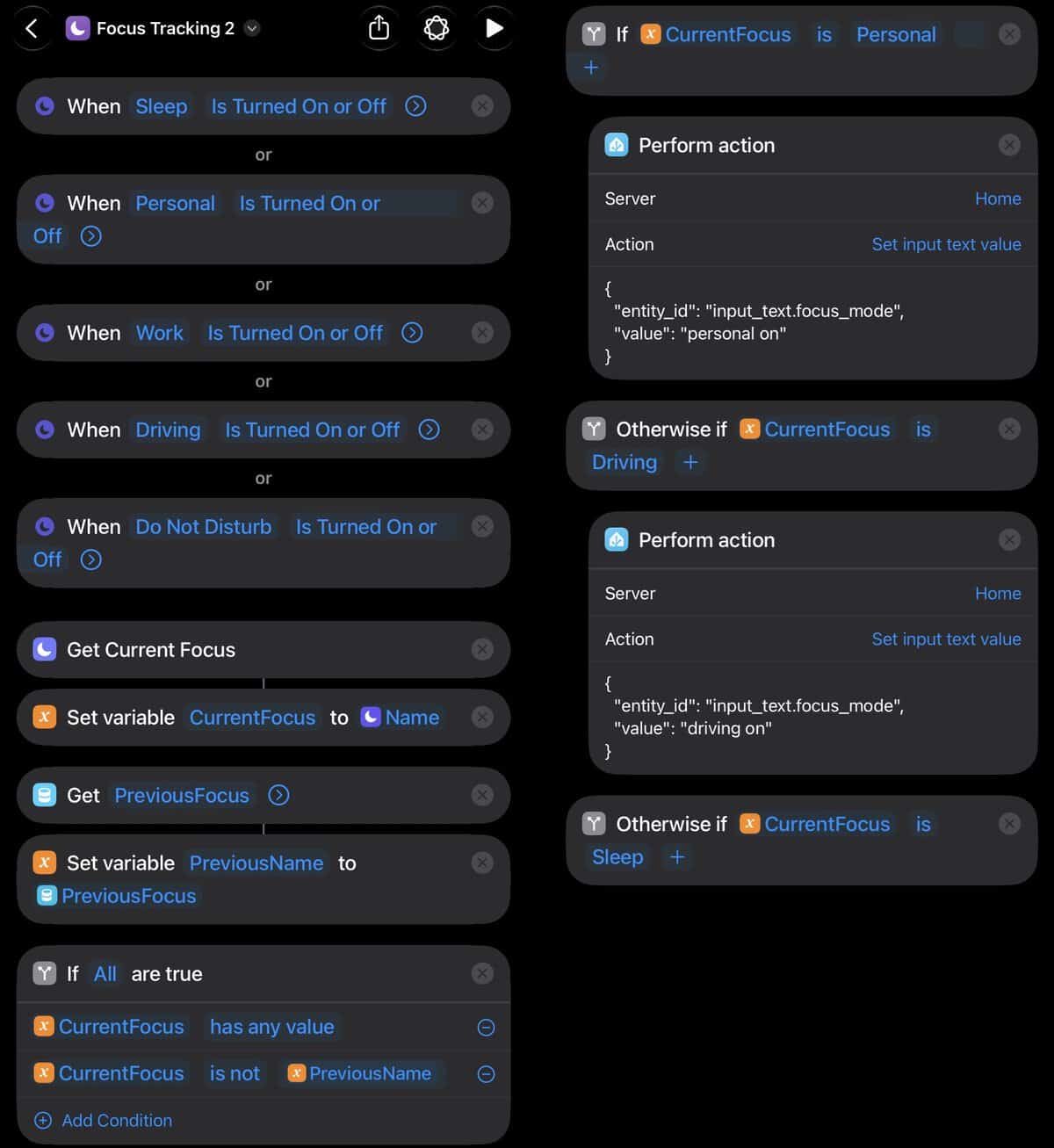
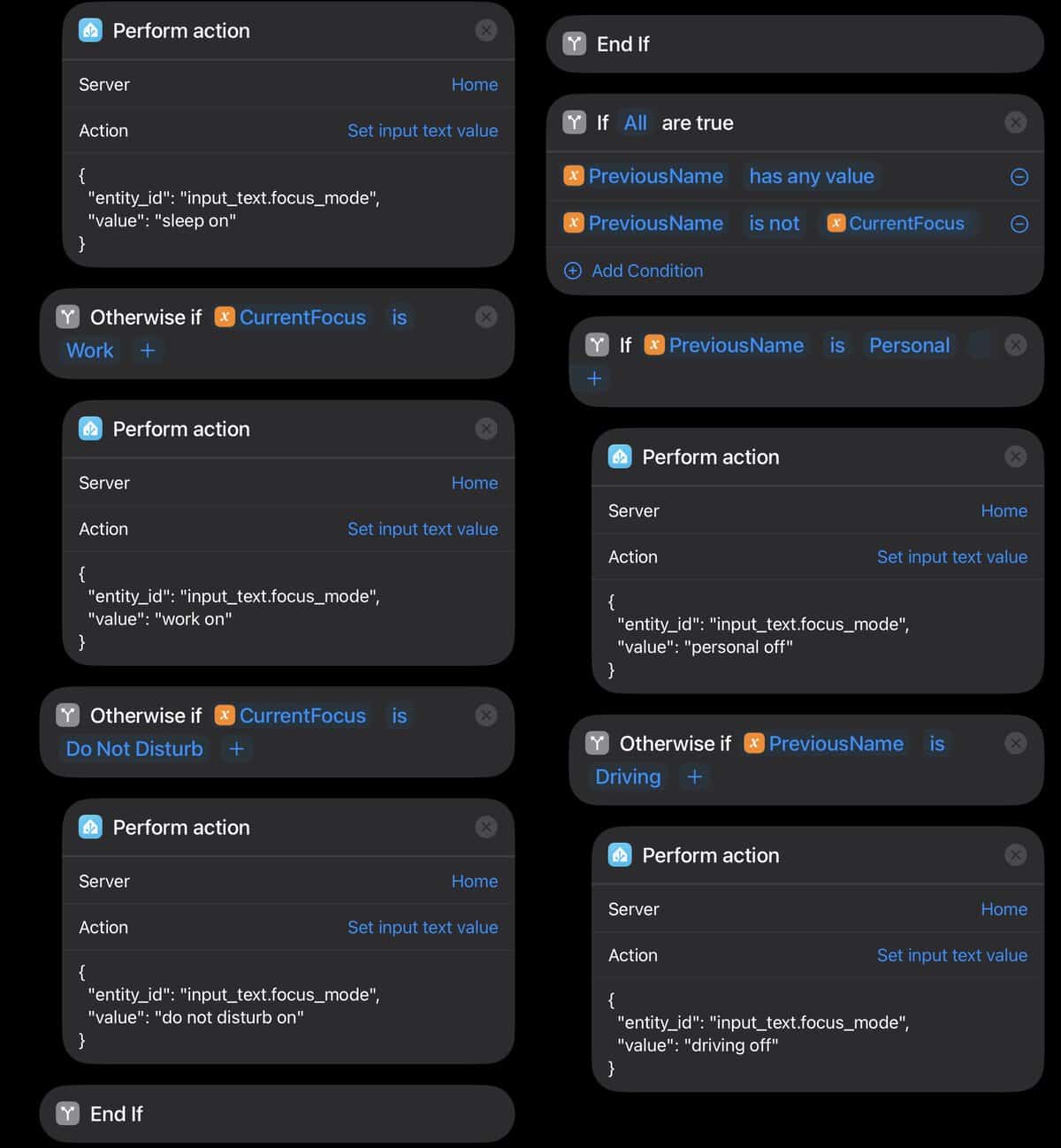
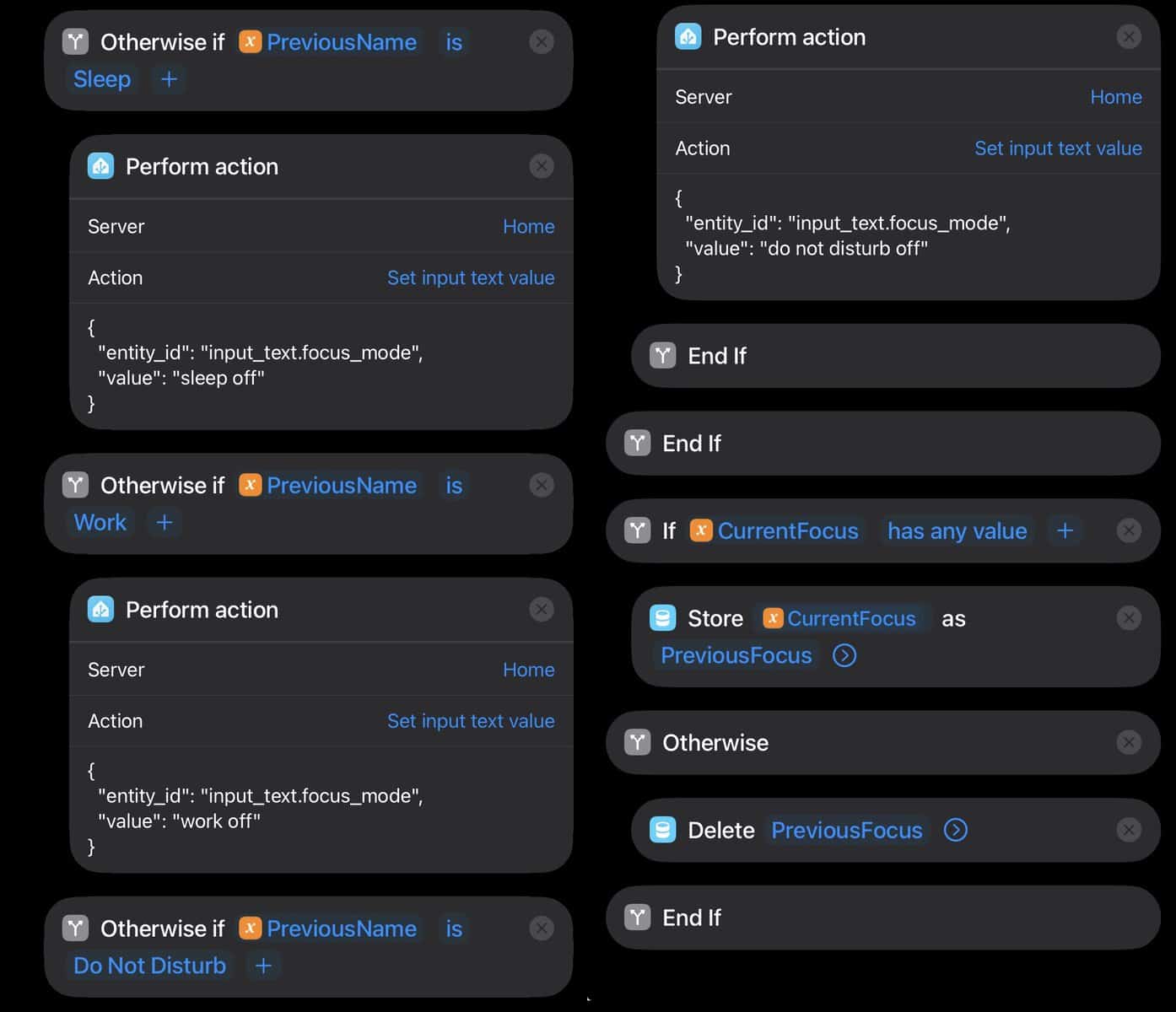
Home Assistant Automation - Combined
In Home Assistant we can build an automation that will trigger when the contents of the input text helper changes. When the automation is triggered I have two “Then Do” actions based on the value of the input text helper. In the simple example below I use Sleep and Work focus modes, which pattern match on the contents of the input text helper.
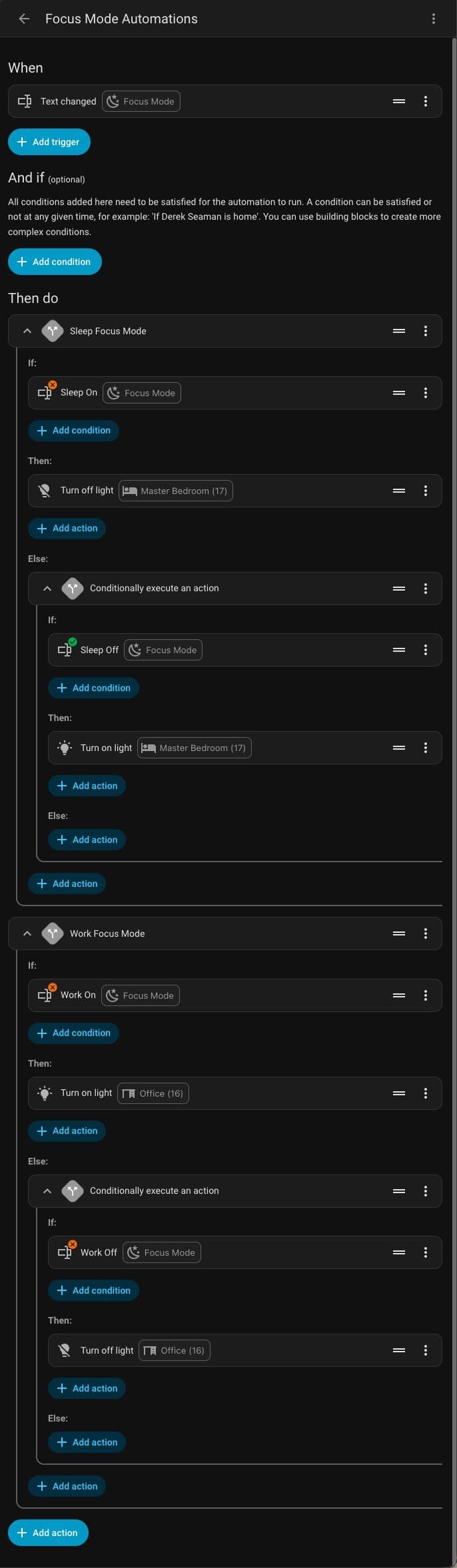
Instead of building an automation from scratch, you can use the example YAML code below. Just start a new automation, go into YAML mode and paste the code, then switch back to the GUI mode.
					alias: Focus Mode Automations
description: ""
triggers:
  - trigger: text.changed
    target:
      entity_id: input_text.focus_mode
    options: {}
conditions: []
actions:
  - alias: Sleep Focus Mode
    if:
      - condition: text.is_equal_to
        target:
          entity_id: input_text.focus_mode
        options:
          for: "00:00:00"
          value: sleep on
        alias: Sleep On
    then:
      - action: light.turn_off
        metadata: {}
        target:
          area_id: master_bedroom
        data: {}
    else:
      - if:
          - condition: text.is_equal_to
            target:
              entity_id: input_text.focus_mode
            options:
              for: "00:00:00"
              value: sleep off
            alias: Sleep Off
        then:
          - action: light.turn_on
            metadata: {}
            target:
              area_id: master_bedroom
            data:
              transition: 5
              color_temp_kelvin: 5131
              brightness_pct: 75
  - alias: Work Focus Mode
    if:
      - alias: Work On
        condition: text.is_equal_to
        target:
          entity_id: input_text.focus_mode
        options:
          for: "00:00:00"
          value: work on
    then:
      - action: light.turn_on
        metadata: {}
        target:
          area_id: office
        data: {}
    else:
      - if:
          - alias: Work Off
            condition: text.is_equal_to
            target:
              entity_id: input_text.focus_mode
            options:
              for: "00:00:00"
              value: work off
        then:
          - action: light.turn_off
            metadata: {}
            target:
              area_id: office
            data: {}
mode: single
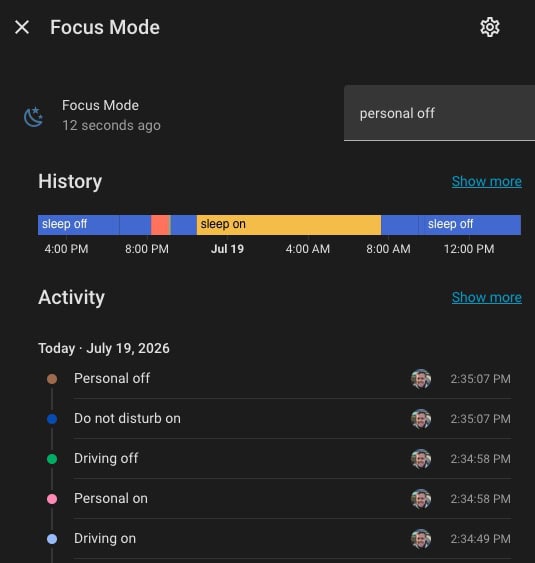
As you can see in the screenshot below, the contents of the text entity is updated in real time as the focus mode state changes. It will log all on and off state changes for each focus mode.
Summary
In this article I showed you how to trigger Home Assistant automations based on the focus mode state change on your iPhone. Depending on your preference you can use a boolean helper entity per focus mode or a single text entity that tracks the state of all your focus modes.
Starting with iOS 27 developer beta 5, Apple has enabled the ability to trigger based on any focus mode including the Sleep focus mode. Sleep was previously missing, and only on iPadOS 27. This is a great addition, thank you Apple!




I love this and your blog. For your consideration I humbly recommend a slight tweak that I do.
For fewer helpers, I have been (pre-iOS 27, although I’m running the betas now too and haven’t changed this system) using a text helper. The shortcuts go “when sleep turned on – get name of focus – write that name to HA text helper”. I then use HA automations / triggers / conditions on this helper name. 1 helper all of my focus modes.
Examples: Yard work, turns off outdoor camera notifications spam because it’s me walking around the house mowing etc. Pool turns off just backyard camera notifications so I can be chilling out back but not have motion lights changing at night and/or I’m still notified when food delivery in front of house etc.
Work focus = when my MacBook mic is in use to stop robot vacuum so it doesn’t disrupt a conf call (then unpause when mic input stops again = call over)
Hope there is something useful in there for you. Trying to give back for all that you have shared. Sorry for the caveman typing. I’m on my phone still waking up with morning coffee and my RSS feeds. 😉
Yes you can certainly go that route as well. Unfortunately on iOS/iPad 27 beta 3 many of the Home Assistant companion Shortcut actions are broken. I would guess you are using the “Perform Action” to set the text helper state? That’s one of the broken actions in my setup so I can’t test it.
I just did a big update to the post and cover both my original solution and also using a single input text helper.
Ps. For my morning focus on days without sleep alarm (ie weekends). I have shortcut that flips morning focus on when I disconnect iPhone from power between xX:XX and xx:xx time in the mornings. I like this to happen as automatically as possible.
Great idea! I’ve amended my post with a new Shortcut (made by iPadOS 27 AI natural language query) to handle the days without an alarm, using your idea as an inspiration.